iPhone Screen Takes Longer to Turn Off? Here’s How to Fix It
Is your iPhone slow to turn off the screen when you press the Side button? Well, it turns out you’re not the only one!
Delayed screen locking is a common problem on iPhones with Face ID. It induces a noticeable delay between pressing the Side button and your iPhone going to sleep, which makes you wait an extra second for the screen to go black.

Surprisingly, many iPhone users aren’t aware of it, and some are unwilling to seek a solution. However, if this bothers you, here’s a guide explaining what causes this delay and the steps to eliminate it.
Why Does Your iPhone Screen Take a While to Turn Off?
Ideally, when you press the Side button on your iPhone, it should go to sleep immediately, i.e., the screen should go black. However, if your iPhone screen takes longer than normal to turn off, it’s possible some feature on your iPhone is keeping it awake. Wallet, Guided Access, and Accessibility Shortcut are three iPhone features known to cause this issue.
Guided Accessis an iOS feature that allows you to restrict access to your iPhone to a single app or task. Accessibility Shortcut, on the other hand, gives you access tovarious accessibility featureson your iPhone. Meanwhile, Wallet is a digital wallet from Apple that lets you store all your loyalty cards, boarding passes, event tickets, and credit or debit cards (for Apple Pay payments) so that you can carry them conveniently wherever you go.
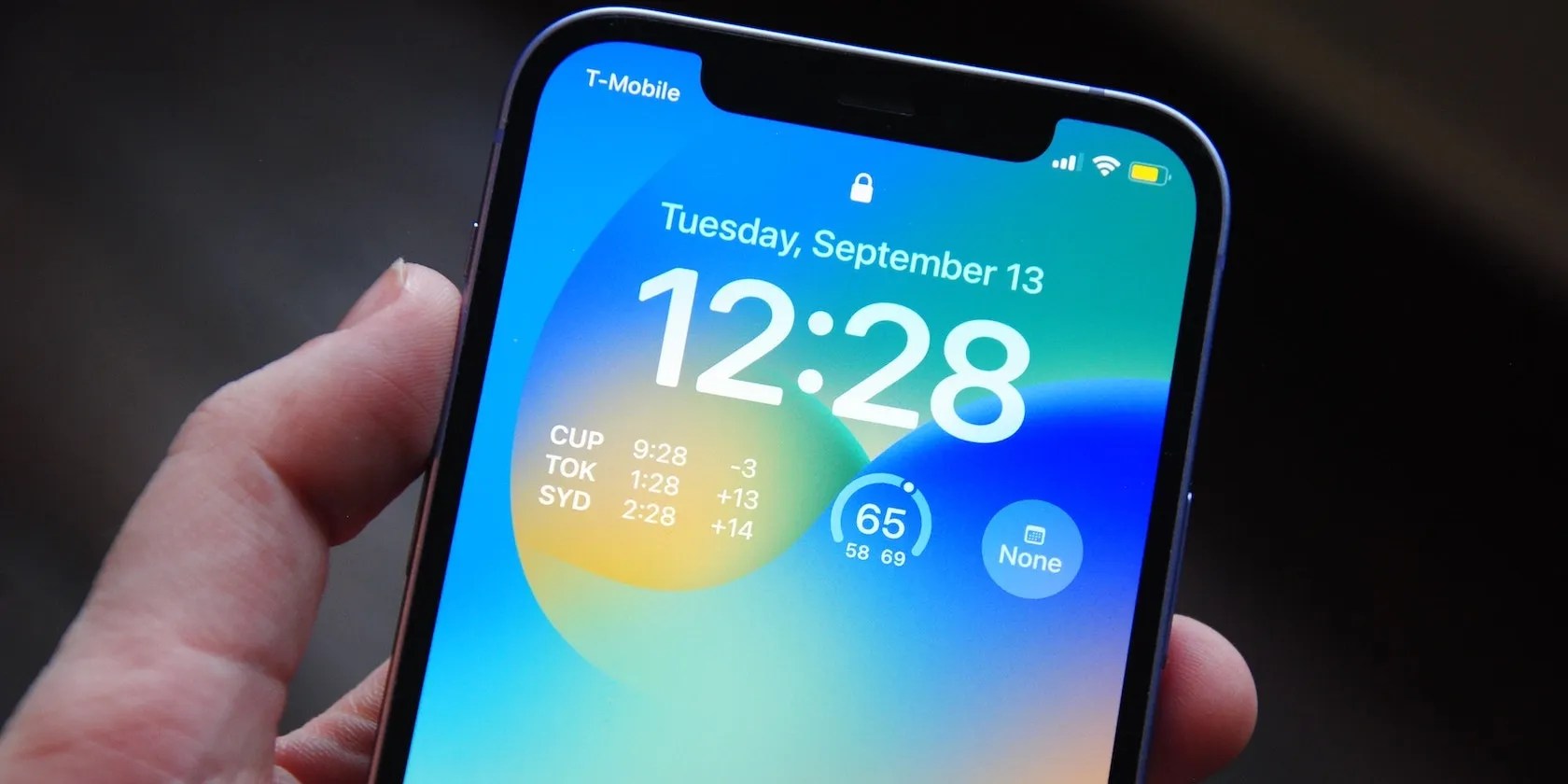
For those unaware, Apple allows you to assign Side button shortcuts for Wallet & Apple Pay, Guided Access, and Accessibility Shortcut on iPhones with Face ID to a double-click or triple-click action, respectively, to facilitate their quick access. As such, if you’ve enabled either feature on your iPhone—and press the Side button once—your iPhone waits for a double-click or triple-click input to activate it, which ultimately induces the sleep delay.
Although this delay isn’t detrimental to iPhone’s performance, it can make the experience sluggish, as it requires you to wait for a second or so after pressing the Side button just to be sure the screen is off so that there are no accidental taps on the screen when you put your iPhone in your pocket.

How to Turn Off Your iPhone Screen Faster
Since the anticipation of a double-click or triple-click is what prevents your iPhone’s display from going to sleep instantly, disabling the Wallet & Apple Pay, Guided Access, and Accessibility Shortcut triggers is a surefire way to alleviate this sleep delay.
Disable Wallet & Apple Pay Shortcut Trigger
Apple Pay is currently only available in select countries, but if you live in one where it’s supported, and you’ve set it to launch with a double-click of the Side button, you can disable it using these steps:
Disable Guided Access and Accessibility Shortcut Trigger
If you’ve enabled Guided Access or Accessibility Shortcut on your iPhone, follow these steps to disable it and eliminate the sleep delay:
Never Wait for Your iPhone Screen to Turn Off Again
Once you’ve disabled these Side button shortcuts on your iPhone, you’ll no longer need to wait for your iPhone screen to turn off. Simply press the Side button once, and your iPhone should sleep immediately.
Going forward, if you ever need to use Apple Pay, Guided Access, or any Accessibility Shortcut again, you can re-enable it from Settings. Naturally, you’ll have to sacrifice quick screen locking to benefit from it, but it may be worth it if you need that convenience.

Fixing the sleep delay can help you reclaim faster locking on your iPhone. However, if your device still seems to perform slowly, it could be due to many other factors.
There are lots of reasons your iPhone might be performing slowly. Luckily, most of them are easy to fix.

You don’t need to fork out for expensive hardware to run an AI on your PC.
The key is not to spook your friends with over-the-top shenanigans.
Sometimes the smallest cleaning habit makes the biggest mess.
Freeing up vital memory on Windows only takes a moment, and your computer will feel much faster once you’re done.
These films will leave you questioning humanity, but also wanting more.
