How to Use Your Xbox One or Xbox Series X|S as a Wireless Display
You can use both the Xbox One and Xbox Series X|S consoles in many ways outside of gaming. But if you’re a gamer, you might have ignored the TV and other multimedia features of the former.
Luckily, while Microsoft reversed the multimedia emphasis of the Xbox One, which heavily divided gamers, it still made an app that lets you use your Xbox console as an external display. So, if you want to experience multimedia content on your other devices through your TV screen, it’s possible to do so with your Xbox.

But what exactly is this application, and how can you turn your Xbox One or Xbox Series X|S into an external wireless display? Let’s find out.
What Is the Microsoft Wireless Display App for Xbox One and Series X|S?
To use your Xbox One or Xbox Series X|S as an external wireless display, you must first ensure that you have the official Wireless Display application available through the Xbox Store. This application allows you to send any images, videos, or cast-able media straight from an external device to the setup your Xbox happens to be connected to.
For instance, if you have any media downloaded onto a device outside your Xbox and its storage, you can use the Wireless Display application to cast the installed media and enjoy it through your Xbox and home display. Even more excitingly, if you have to have games installed on your PC or other devices, you can cast them to your Xbox and even use your Xbox controller to play these titles.
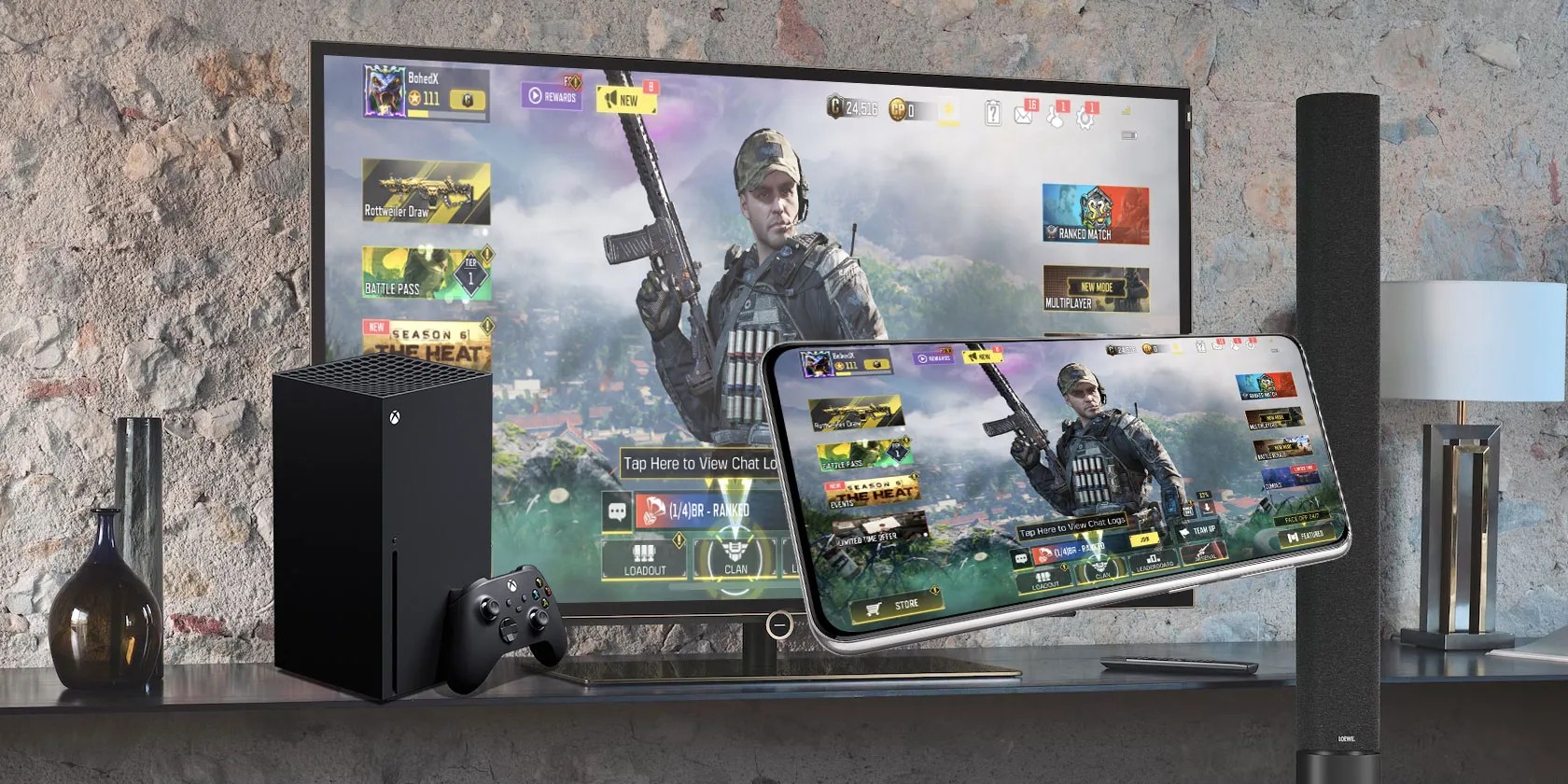
With this app, you can cast any game you’re playing to your Xbox and enjoy them, even if they aren’t necessarily an Xbox title. That way, you can use your Xbox hardware and controllers to enjoy them.
Alternatively, you use more universalways to cast from your smartphone to your Xbox consoles, but you will lose the compatibility of Xbox hardware and accessories provided by the Wireless Display app. But, with that said, your devices still need to be compatible with the Wireless Display app in the first place.

What Devices Are Supported by the Wireless Display App for Xbox One and Series X|S?
Before discovering how to use the Wireless Display application for Xbox One or Xbox Series X|S, double-check whether your external devices are compatible.
Unfortunately, only Windows or Android-based devices are compatible with the Wireless Display application for Xbox. This is mainly due to the application relying on the casting systems supported by Windows and Android but is incompatible with Apple’s AirPlay technology.

While this is restrictive, you’re able to still utilizeXbox Cloud Gamingon Windows, Android, and Apple devices, enabling you to at least stream supported Xbox titles to your Apple devices.
With that said, however, the Wireless Display application still represents the easiest way to cast from external devices to your Xbox, and it’s officially supported by Microsoft, just as long as you’re using Windows or Android devices.

How to Turn Your Xbox One or Xbox Series X|S Into a Wireless Display
Now you know what the Wireless Display application for Xbox One or Xbox Series X|S actually is and what devices are compatible with it, you’re ready to use the app and turn your Xbox into a wireless display.
To turn your Xbox into a wireless display, you should first ensure that the Wireless Display application, available through theMicrosoft Storeor the Xbox Store, is installed on your Xbox. Then, you should follow these steps:
You should note, though, that because of the variations in Windows and Android devices, the options toCastorConnectmay differ slightly depending on your device manufacturer. For instance, Samsung usesSmart View, whereas other Android manufacturers simply name the featureCast.
But with the Wireless Display app open on your Xbox and your external Android or Windows device set up to cast to your Xbox, the devices will connect, and your Xbox will display your intended media for you. And, if you want to adjust your controller input, simply press the Menu and View buttons to openController setup.
Get More Than Just Gaming With Multimedia Support for Xbox One and Xbox Series X|S
With Xbox One and the Xbox Series X|S console letting you stream content and games from other compatible devices and even allowing you to use an Xbox controlled to play supported titles while casting, you broader the ways you enjoy your Xbox.
And with further support for streaming games, streaming content through Twitch, or even socializing through Discord, Xbox offers many ways for you to enjoy all forms of content and services through its platform.
Here’s how you can seamlessly stream your Xbox gameplay using Twitch.
Don’t let someone else take over your phone number.
If an AI can roast you, it can also prep you for emergencies.
Your iPhone forgets what you copy, but this shortcut makes it remember everything.
The key is not to spook your friends with over-the-top shenanigans.
It saves me hours and keeps my sanity intact.
