How to use Flex Mode on the Samsung Galaxy Z Fold 4
Samsung makes all kinds of excellent smartphones at affordable prices, but nothing catches the eye quite like theSamsung Galaxy Z Fold 4. It’s one of thebest Android phonesyou can buy today. Part phone, part tablet, it’s the productivity device of your dreams, but it’s not just a pretty screen.
Alongside some enhancements from Google with Android 12L, Samsung has brought its own features and functions to the table, and the best of the bunch is undoubtedly Flex Mode. This service turns your foldable into a futuristic mini-laptop, but you might not know where to begin if you’re just getting started. Here’s everything you need to know about Flex Mode and other multitasking tricks.

As you might expect, Flex Mode is all about using your foldable’s bending display to your advantage. Not every application supports Flex Mode, but those that do, allow you to use the right side of the display panel as your main screen while transforming the left side into a control panel. Although not every workflow fits into Flex Mode, it’s incredibly useful for those who want video controls while watching a movie, music controls while jamming at the office, or anyone who prefers a mouse over touchscreen controls.
How to set up Flex Mode on the Samsung Galaxy Z Fold 4
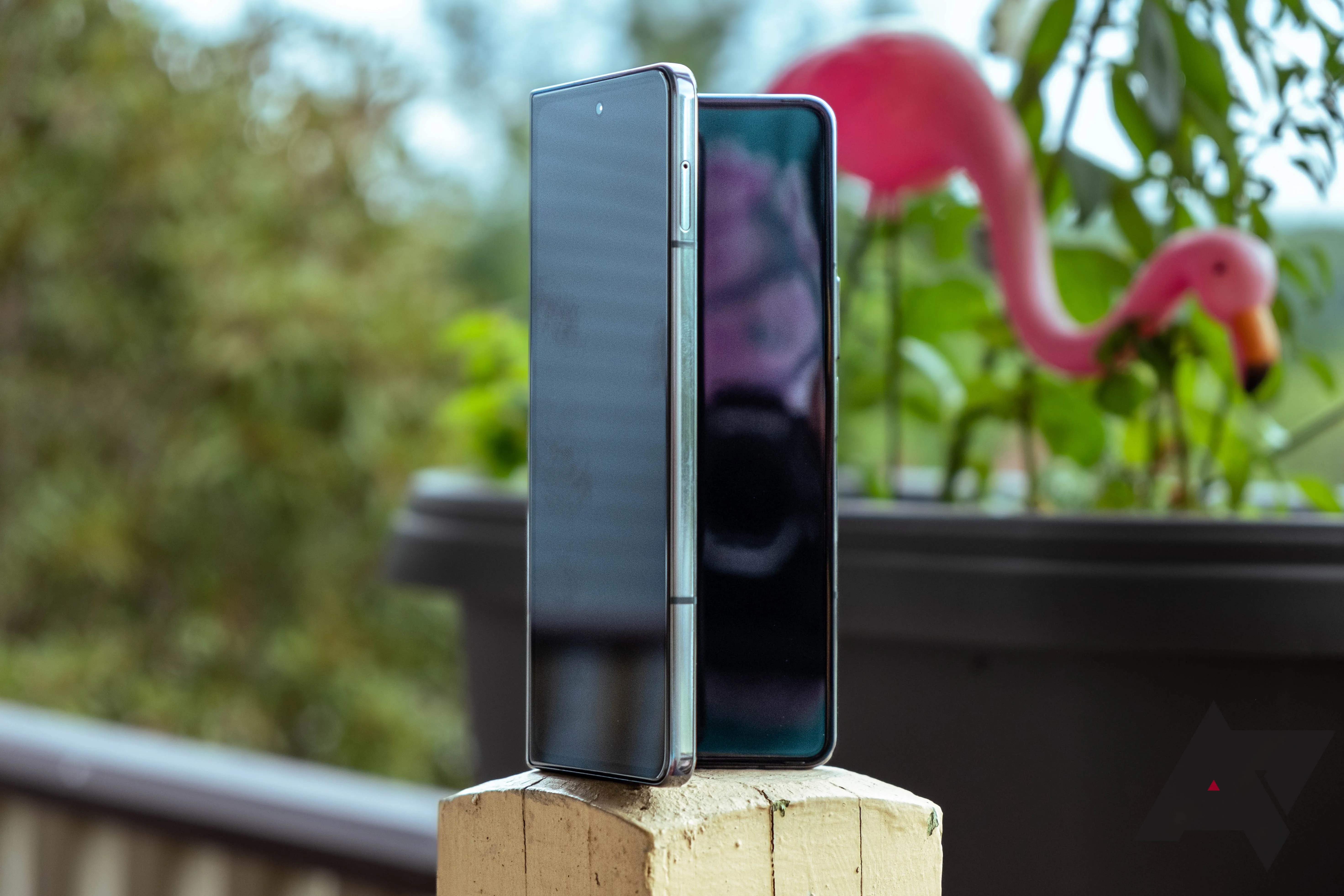
To start with Flex Mode, open any application that supports the feature, then bend your Galaxy Z Fold 4’s display in on itself. If you’re using a supported application, the app moves onto the right (now top) panel while a series of controls appear along the left (now bottom) side. Place your phone on a desk or another flat surface since it’s not quite as handy if you’re holding it in your hand.
If you tried out Flex Mode before, you probably noticed it doesn’t work on every app. By default, Samsung enabled this service for a handful of software, but that doesn’t mean you’re limited to whatever’s turned on by default.
To change how Flex Mode works, dive into Settings on your Fold 4. Once you’re in Settings, look forAdvanced features, then selectLabsfrom the list of options.Flex mode panelis found at the bottom of this menu.
Here’s where you’ll disable or enable Flex Mode on the apps of your choosing, including anything that came pre-installed or was downloaded from the Play Store. Not every app works well with Flex Mode. Some services, including Instagram, don’t support it at all. Others, including many Samsung apps, have their own custom layouts, so you can’t toggle the feature on or off.

When you’re finished setting up Flex Mode, head back to the homescreen and open an app. Turn the Fold 4 horizontal in your hands, then bend the screen to open the control panel.
How to use all of Flex Mode’s features on the Samsung Galaxy Z Fold 4
For most people, the main draw to Flex Mode is the built-in touchpad. You’ll find its icon all the way to the right of the control panel on the bottom portion of the display. It transforms the screen into a virtual trackpad, complete with a mouse icon on the top pane. Clicking, dragging, scrolling, double-tapping. It all works just as you’d expect. If you’re working on a high-profile project at work, it’s a great way to get that laptop feel without carrying around a full-size device.
Still, the Flex Mode touchpad can be finicky. Because it takes up about half of the bottom portion of the display, you have very little space to move your finger up or down. This limited area also affects scrolling since you may only move so far before running out of room. You’re also stuck with the default mouse speed, which might feel slow. If you prefer a faster cursor, you won’t find it here. The touchpad is a neat gimmick but not one you’re likely to rely on often.

So what else does Flex Mode offer? If you use media apps (think podcast players, music streaming services, or video subscription apps like Netflix), some of the controls found in the bottom panel are useful. Using the Fold like this props up the display for enhanced viewing, and the brightness and volume shortcuts make perfecting your experience a lot easier.
If you’re looking at Flex Mode’s control panel, you’ll notice two more icons. The boxy button all the way to the left opens your notification tray, saving you from having to paw at the top screen awkwardly. It’s not the most functional of the bunch, but it’s nice to have. To its right is the final icon, a screenshot button that quickly captures whatever’s on your display. Just keep in mind that it’s only saving what’s on the top panel, not the entire screen. You can still save everything, including the Flex Mode panel, but you’ll need to press the physical keys on the Galaxy Z Fold 4, which can feel a little awkward.

A screenshot using Flex Mode’s shortcut.
Flex Mode is the ultimate productivity tool for the Samsung Galaxy Z Fold 4
Flex Mode is one of the best ways to interact with your Galaxy Z Fold 4, especially if you’re trying to get real work done.Combined with an optional S Pen, Samsung’s latest foldable is a multitasking machine, one you should take full advantage of once you have the phone in your hands. And if you haven’t made up your mind between theZ Fold 4 and the Galaxy S22 Ultrafor your productivity needs, check out our comparison post before throwing down your credit card for agreat 5G phone.
Pixel 10 Pro XL charges faster wirelessly
From faster storage to better speakers
Google’s made several improvements over the years
Carriers get the upper hand
Things get red hot for Magenta
Free screen and battery repairs inbound
