How to Make Windows Ignore an External HDD and Boot Faster
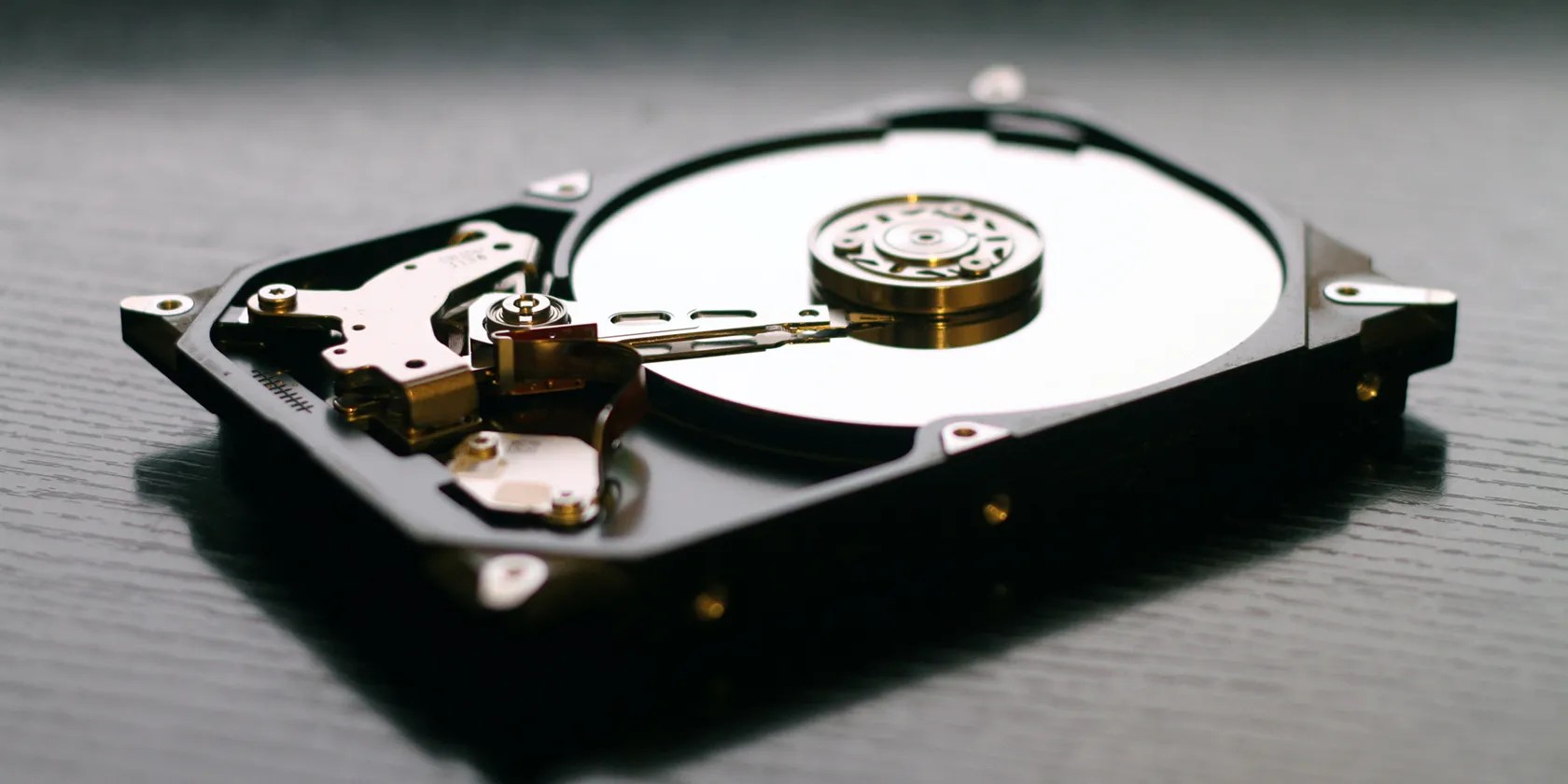
The more Boot processes your PC has to go through, the longer it will take for your computer to start. One of those processes is checking all connected hard drives to see which contains the operating system. And if you have a few external HDDs connected without operating systems installed on them, they can arbitrarily slow things down.
Here’s how to make Windows boot faster by ignoring external hard disk drives.

How Can an External HDD Slow Down the Windows Boot Process?
You might have one or more external hard drives connected to your computer. If you do, the computer’sBIOSor UEFI might have to wait for each to start up before it knows from which it needs to boot.
The more external drives you have attached, the longer this delay in booting could be. The delay caused by this process shouldn’t be a problem if you are using a fast and efficient computer. But on an older or less optimized PC, it can add several seconds to boot.

There are a few ways to make Windows ignore your external HDDs when booting up. Several of these steps involve accessing the BIOS or UEFI menu, also known as the boot menu. It is a good idea to ensure you are familiar with them before continuing.
1. How to Remove an External Disk Drive From the Boot List
All external drives connected to your computer will be automatically added to the Boot List in the BIOS or UEFI. Any hard drives you want the system to ignore can usually be removed from this list.
You will need to know how to access the Boot Menu during startup to make this change. The exact process varies but always involves pressing a function key as the computer starts. The most common keys used are F2, F10, or F12.

Not all versions of BIOS or UEFI have the option to remove a volume from the boot list. In this situation, you should at least ensure that the drive that contains Windows boots first. The devices at the top of the list are first in the boot order.
2. How to Reset Fast Boot or Fast Startup
The Fast Boot or Fast Startup option is designed to make your Windows PC start more quickly. They may have been enabled for a long time without you giving them much thought. But if drives have been added and removed repeatedly, their configurations can become muddled.
To reset Fast Boot or Fast Startup all you really need to do is disable the feature, reboot, and activate it again.

If incorrect fast boot settings were causing the slow boot time, you should immediately notice a difference.
3. How to Set Disk Drive Partitions as Inactive
It’s really easy to learnhow to partition a drive in Windows, but if your external hard drives have active partitions, the boot process will check to see if they are bootable volumes. This can also slow down the boot process.
You can easily set partitions to inactive using the Windows Disk Management tool. Editing partitions can seem like a task best left to experts, but when editing a storage volume, the risk of disaster is quite low.
This won’t affect how a storage volume works in terms of being able to copy files and data onto it. it’s possible to still use them in the normal way, they just won’t be checked during boot.
4. How to Update Your BIOS or UEFI
If the boot process continues to be slow, consider updating the BIOS or UEFI. The BIOS or UEFI installed on your computer likely has an updated version available. Especially if your computer is more than 12 months old.
Updating the BIOS or UEFI is not the easiest of tasks. But it shouldn’t be too much of a problem if you follow the update instructions carefully. You will need to know your exact motherboard model and manufacturer. you’re able to then check the manufacturer’s website for any BIOS updates.
Making Windows Ignore HDDs for Faster Boot Times
Your attached external disk drives could be making the boot time longer than it needs to be. Ensuring the Windows boot process ignores drives that don’t need to be checked can considerably reduce how long it takes to start up. This varies depending on how many hard drives you have attached, but where PC booting is concerned, faster is always better.
Here are several useful tips and tricks to fix a slow startup on your PC.
Unlock a world of entertainment possibilities with this clever TV hack.
I plugged random USB devices into my phone and was pleasantly surprised by how many actually worked.
You’ve been quoting these famous films wrong all along!
It saves me hours and keeps my sanity intact.
These films will leave you questioning humanity, but also wanting more.
