How to Make a Printable Weekly Planner With Canva
Are you a professional with a busy schedule or a parent with millions of things to do in a day? When your days are jam-packed, things may slip away from your mind, and you end up with more work the next day. One way you may get things done and take control of your life is with planners.
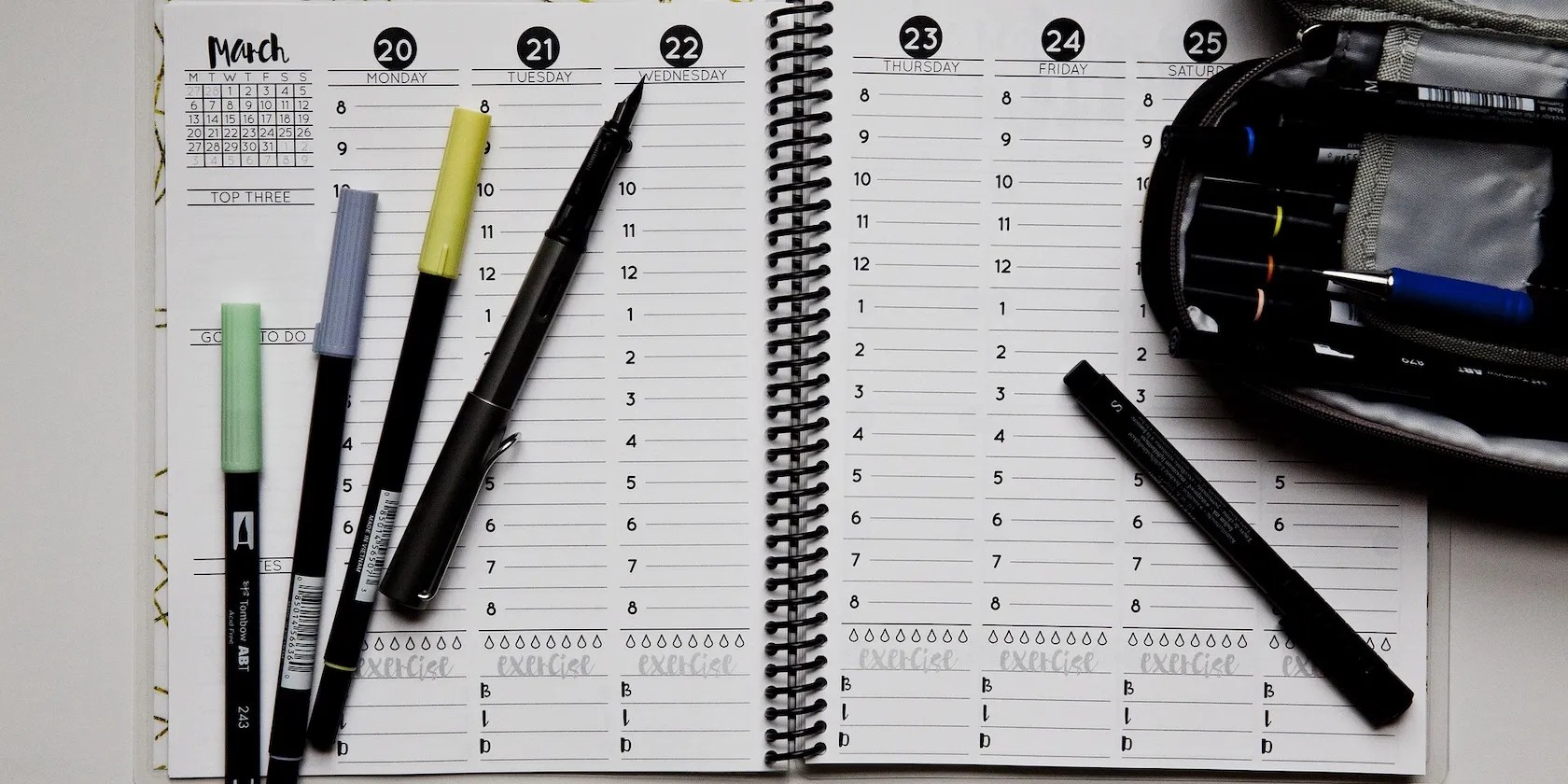
No, you don’t need the thick, hard-cover bound planners. They can be a hassle to carry around, and finding the right page in them is another nuisance. So, let’s make a simple weekly planner that you could print and stick to your office pinboard or refrigerator.

How to Make a Weekly Planner in Canva
We are using Canva to make our weekly planner. Ifyou’ve not used Canva before, don’t worry. Canva is very simple to learn. And thanks to the intuitive design,Canva can make anyone a designer, even kids.
Step 1: Open Canva
To start, go to theCanvawebsite.
Then, click on theLoginbutton and use your preferred way to sign in. If you’re new, use theSign upbutton.
Step 2: Create the Design
Go toCreate a designin the top right corner. Click onFlyer(Portrait)
You can choose any other type of design too, but make sure it is A4 size, 8.5 x 11 inches.

Step 3: Use a Template
If you’re looking to create a quick planner, all you have to do is to search for “weekly planner” in theTemplatessection. you could findTemplatesunder theDesigntab in the upper left corner.
You can apply the template, and you’re good to go. Save the document and print it. It is as simple as that.

How to Make a Custom Weekly Planner in Canva
If you want more control over what to include, you can make your own custom planner in Canva. Before Canva, only designers were able to create documents with extensive design elements. But now, with tools like Canva, making any infographic or flyer is a breeze.
Step 1: Decide What You Need
To start designing a custom planner, start by thinking about the layout. Ask yourself the following questions to understand what you want exactly.
Once you have the layout plan ready, follow steps 1 and 2 from the above method.

Step 2: Design the Layout
Add a background color to your poster by clicking the color button.
You can add shapes like squares, rectangles, or ovals by searching under theElementstab. Then, place them evenly on your background. Leave some space on the top for the title.
Step 3: Create a Title
Click onElementsin the top left corner. Search for banners. Find your preferred design and place it on the top of the document. Give your document a title. For instance, we have used the title Weekly Planner. There are some stylishfree Canva fonts you can try.
you could be creative and give it any title you wish; that’s the whole point of a personalized planner.
Step 4: Add the Details
Give names to each block on your layout. We have used the weekdays.
Search for straight lines in theElementssection and add them as lines. Your writing will be tidy and look clean on a lined planner. Of course, you may skip adding lines if you prefer a plain planner. You can also add borders if you wish.
Step 5: Export Your Planner
Zoom in and check for any spelling errors or formatting issues. If you’re happy with the way it looks, clickSharein the top right corner.
Then, go toDownloadand choosePDF Standardas your file type. PressDownload, and your file will save to your computer’s downloads folder.
You can then print your planner as many times as you want.
Making a Weekly Planner Is Breezy in Canva
you could download free planners online—the internet is full of them. But making a personalized planner is not only fun, but it can also boost your creativity and confidence. So, go ahead and try to create one today. After all, Canva is free!
Canva is not just for designers. Here’s how you may utilize this tool as a freelance writer.
You’ve been quoting these famous films wrong all along!
Obsidian finally feels complete.
Your iPhone forgets what you copy, but this shortcut makes it remember everything.
These plugins will make you wonder why you used Photoshop in the first place.
My iPhone does it all, but I still need my dumb phone.
