How to Fix the AutoIt Error Line 0 Startup Error on Windows
You may encounter the AutoIt Line 0 Error when you boot your computer. The error usually goes away when you close it, but more often than not, it’s persistent and will annoy you.
This error occurs due to several reasons—a common reason is malware infection. Other reasons include an autorun task scheduled by a program that no longer exists and third-party app conflicts.

Fortunately, you can fix the AutoIt Error Line 0 by removing the troublesome services and performing a malware scan. Here we show you how.
1. Remove the AutoIt Program
An easy way to fix this error is to remove the AutoIt program from your computer. If you haven’t installed any such app, check the installed apps or the Programs section in Control Panel to find any traces of the app.
To uninstall AutoIt:
Once you’ve completed all the steps, restart your computer and check if the error is resolved.
2. Perform a Malware Scan
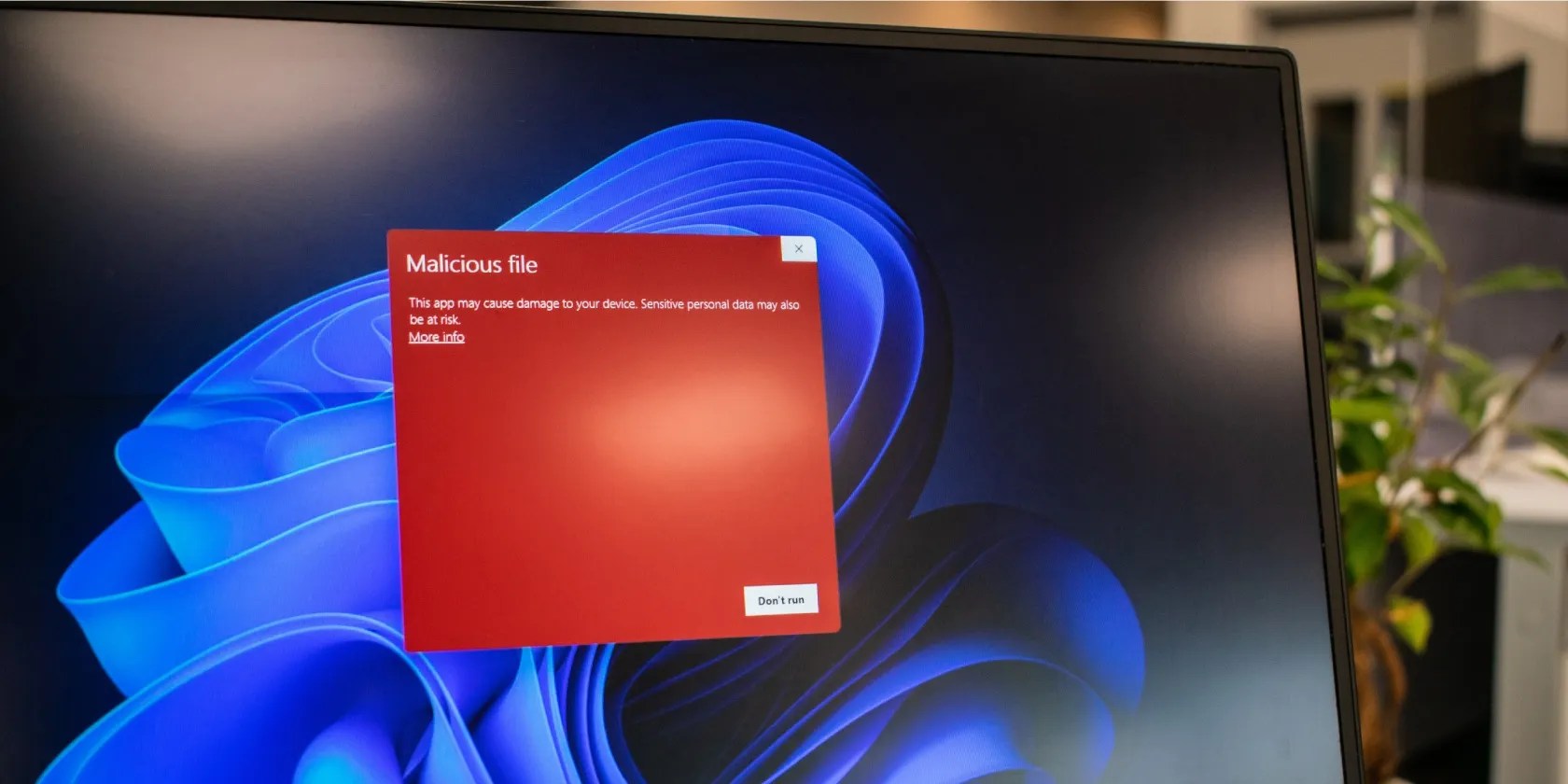
The AutoIt error often results from a malware-infected file that triggers autorun and tries to modify some Windows services. To be on the safer side, perform a full malware scan to find any adware or other malicious tools on your computer.
If you have a third-party antivirus solution, ensure the virus definition is up-to-date. If not, use Windows Security to perform a full scan and identify any malicious files.

To run a full scan using Windows Security:
If Windows Security or your third-party antivirus found no issues, run Microsoft Safety Scanner in Safe Mode. Microsoft Safety Scanner is a virus removal tool to scan and delete malware from Windows computers.

you may use Microsoft Safety Scanner in Safe Mode and normal mode. In Safe Mode, however, you can use the tool without third-party apps conflict. So,boot into Safe Mode with Networking. When you get to theStartup settings, pressF5or5on your keyboard to restartWindows in Safe Mode with Networking.
Once in Safe Mode, open Microsoft Edge and downloadMicrosoft Safety Scanner. Run the tool and agree to the terms. In theScan Typescreen, selectFull Scanand clickNextto begin scanning.

The scanning process may take some time and provide a report of any potentially unwanted software that is detected. Since you have opted for a full scan, it may take over an hour to complete.
If Microsoft Safety Scanner also fails to detect any issues, run a full scan with Malwarebytes. It offers a free trial and often detects threats undetected by other antivirus solutions. It is also featured in our list oftop malware removal tools to clean up Windows PC.
3. Remove the Remaining Autorun Keys Using Windows Autoruns
Since AutoIt is a startup error, and the malware scan did not find any threats, the next step is to detect any residual autorun keys that trigger the error. This often happens due to leftover autorun keys created by a program that no longer exists on your system.
You can use theWindows Autorunsutility to find the autorunning apps or services on your computer. It helps you find the programs configured to run during system bootup.
But how do you identify the problematic app or service? The answer is usually in the error message you receive. Often the error dialog contains the file path to a service triggering the error.
For example, if the full error on your computer reads “AutoIt Error Line 0 (file C:\Users\65875\AppData\Roaming\ServiceGet\vapihas.dat)”, the file pathC:\Users\65875\AppData\Roaming\ServiceGet\vapihas.datis where the problem exists. In this instance, to fix the error, you must remove thevapihas.datfile.
Follow these steps to remove autorun keys using Windows Autoruns:
As discussed earlier, note down the error to identify the service causing the error. Then you’re able to delete the service using Windows Autoruns.
4. Perform a Clean Boot to Identify Third-Party App Conflicts
In the clean boot mode, Windows starts with only Microsoft services enabled. you could start Windows in clean boot mode to identify third-party app conflicts causing the AutoIt error line 0.
Start byperforming a clean boot on Windows 11. These steps should also work on a Windows 10 system. Once in the clean boot state, check if the error occurs after the startup. If not, you can safely assume a third-party startup service or app is triggering the AutoIt error.
To resolve the issue, launchTask Managerand open theStartup Appstab. Next, locate the app or service that is shown in the error message and disable it from running on startup.
Some startup apps are only configurable using the option within the app. Here is how you candisable startup programs on Windows 11using the app’s settings and other methods.
Once done, you’ll need to re-enable the disabled service inSystem Configuration. To do this, open theSystem Configurationapp, go to theGeneraltab, and selectNormal startup. ClickApplyandOKto save the changes.
5. Run System File Checker and DISM to Repair Windows
If the issue persists, you may perform a system repair using the System File Checker (SFC) and Deployment Image Service and Management (DISM) tools. A system repair should work if a malware infection has damaged your Windows image or other system files.
Torepair a corrupted Windows installation, run the following commands one by one in an elevated Command Prompt:
Fix the AutoIt Error Line 0 on Windows
The AutoIt error is often a case of malware infection that has added an autorun service to your computer. You can fix the error by performing a full system scan. If the issue persists, use Windows Autoruns to find and remove the autorun service manually.
But if you determine that some systems files were corrupted due to a malware infection, then a Windows installation repair might be necessary to fix the issue.
The virus may be gone, but it may have left destruction in its wake… or even some nasty surprises.
Not Linux, not Windows. Something better.
My foolproof plan is to use Windows 10 until 2030, with the latest security updates.
Don’t let aging hardware force you into buying expensive upgrades.
You’re not getting the most out of what you pay for iCloud+.
Windows is great, but adding this makes it unstoppable.
