How to Customize the Ubuntu Dock to Look Like macOS
One of the major features of the GNOME 42 desktop environment is a highly-customizable dock or dash. Let’s look at how you can customize the new dock in Ubuntu 22.04 LTS (Jammy Jellyfish) or later to have a similar look to that of macOS.
Sign up forfree
Forgot your password?
Create an account
*Required: 8 chars, 1 capital letter, 1 number
By continuing, you agree to thePrivacy PolicyandTerms of Use.You also agree to receive our newsletters, you could opt-out any time.

GNOME is one of the most widely used Linux desktop environments and is the default desktop environment on Ubuntu. Other major Linux distros such as Debian, Red Hat Enterprise Linux (RHEL), Fedora, etc. also use GNOME as their default desktop.
The current version of GNOME is beautiful and elegant. It boasts a customizable dash and promises distraction-free computing to allow you to get things done with ease. It also comes with enhanced keyboard and mouse gesture features.

Ubuntu 22.04 LTS, is the first version of Ubuntu to fully support thenewest version of GNOME 42which was released in early 2022.
Step 1: Accessing the Dock Settings
By default, the dock in Ubuntu is positioned on the left-hand side of the screen. This has been Ubuntu’s tradition since the days of the Unity desktop. Prior toUbuntu 22.04, you had to rely on third-party software to customize the dock. All that has changed thanks to the new GNOME.
Access your dock settings by pressing theSuperkey and then type “settings” in the input that appears. Under theSettingsmenu click on theAppearancetab. There, you will find the Dock section for customizing your dock.

Step 2: Customizing the Ubuntu Dock
Once you access the dock settings, You can change the position of the dock to theBottom, the default is left. If you take a look at the dock now, it will be positioned at the bottom of your screen, but it extends from edge to edge.
The next step is to customize the dock so that it floats in the center of your screen. To do that, simply disable panel mode by clicking on thePanel modetoggle button.

For a more focused and distraction-free desktop, click on theAuto-hide the Docktoggle button to enable it and automatically hide the dock whenever you are not using it actively.
Also, it’s possible to customize the dock to have smaller or bigger icons depending on your liking.
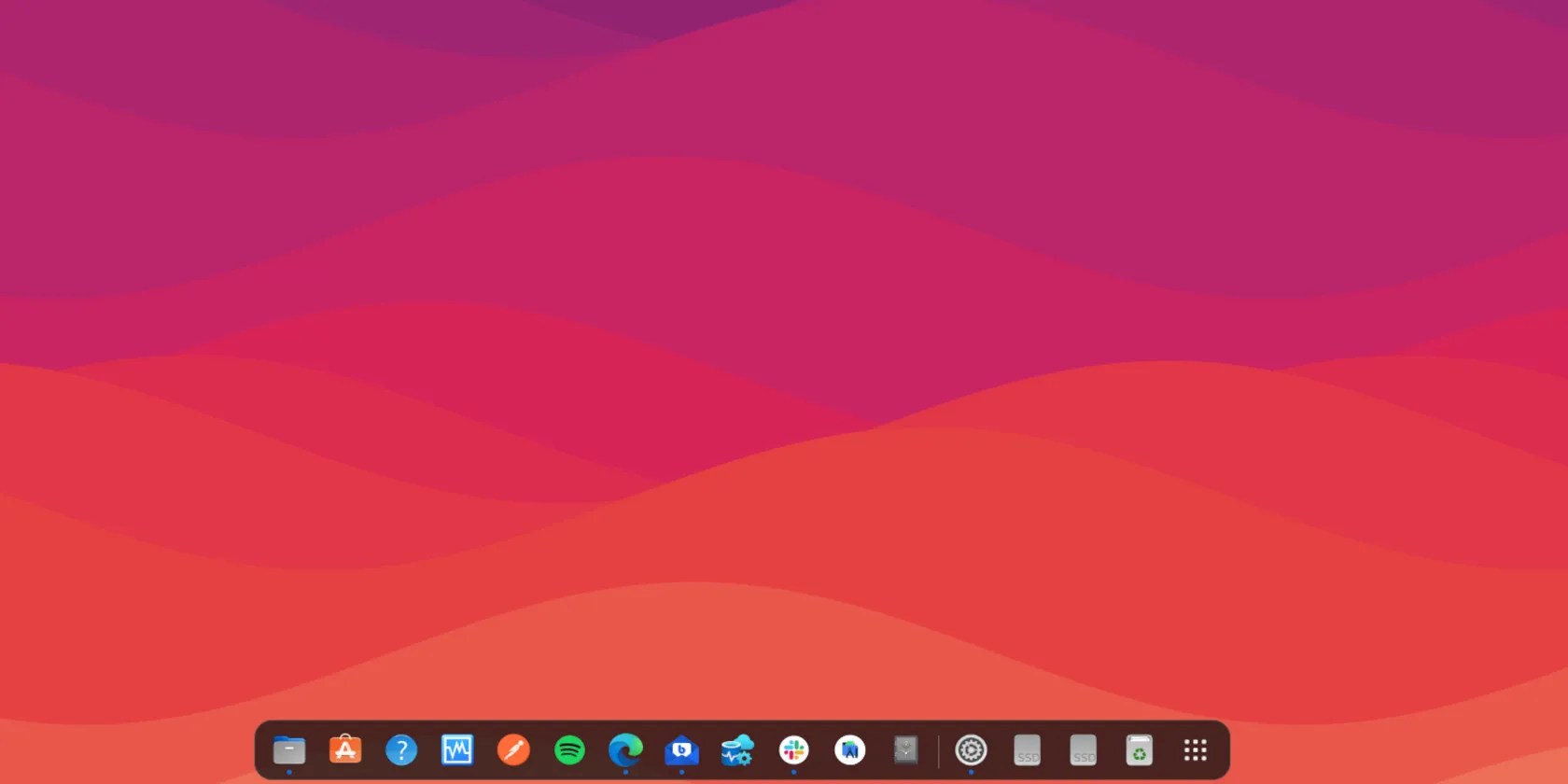
You can also customize whether the trash bin or mounted hard disks are always visible on the dock. To change these properties, simply click on theConfigure dock behaviorsection and make the necessary updates.
The updated setting should now look similar to the following:
After making all the changes, this is how your desktop would look:
Upgrade to Ubuntu 22.04 for a Better Linux Experience
We’ve looked at how to customize the new dock in Ubuntu 22.04. If you are on older versions of Ubuntu, simply upgrade to the latest Ubuntu LTS release to experience the power of the GNOME desktop environment.
For those who are already running Ubuntu on their machine, here’s how you can upgrade to the latest version: 22.04 “Jammy Jellyfish.”
Taming data is easier than it looks.
Not all true crime is about hacking, slashing, and gore.
I gripped my chair the entire time—and then kept thinking about it when the screen turned off.
These films will leave you questioning humanity, but also wanting more.
Turn these settings on, and your iPhone will be so much better than before.
