How to Create Folders to Organize Chats and Channels on Zoom
Organizing your work and personal items is one of the ways you’re able to take control of your day. A simple thing like arranging your desk or taking the time to sort out your filing system can go a long way. But organizing your virtual life can also make a huge difference.
And you can do that on Zoom. The video conferencing app allows you to create folders to organize your chats and channels. So, how do Zoom’s chat folders work, and how can you get started on creating your folders? Let’s find out.

Zoom Allows You to Create Folders for Chats
Zoom makes it easier to organize your chats and channels. You can create folders to group them in a way that makes it easier to find what you’re looking for. You can create folders according to projects, teams, departments, and more.
Some examples of folders you can create include family chat folders, folders for friends, and folders for your daily or weekly priorities. You can’t share your folders with anyone, and no one will be able to see or access them, as they are private. That’s good news if you’re a private person. Read our guide onhow to keep your privacy on Zoom and other platforms.

Zoom allows you to create up to 200 folders. In each one, you could add up to 50 items, like channels, and group and individual chats. You can also drag and drop folders and whatever’s inside them for better organization.
Regardless of how you go about it, folders help you separate your chats, making it easier to manage them. Your folders are synced with your Zoom account, which means you’ll be able to access them if you switch devices. You can create folders on Windows, macOS, iOS, and Android. Find outhow to use Zoom on Android.

How to Create Folders in Zoom Chat
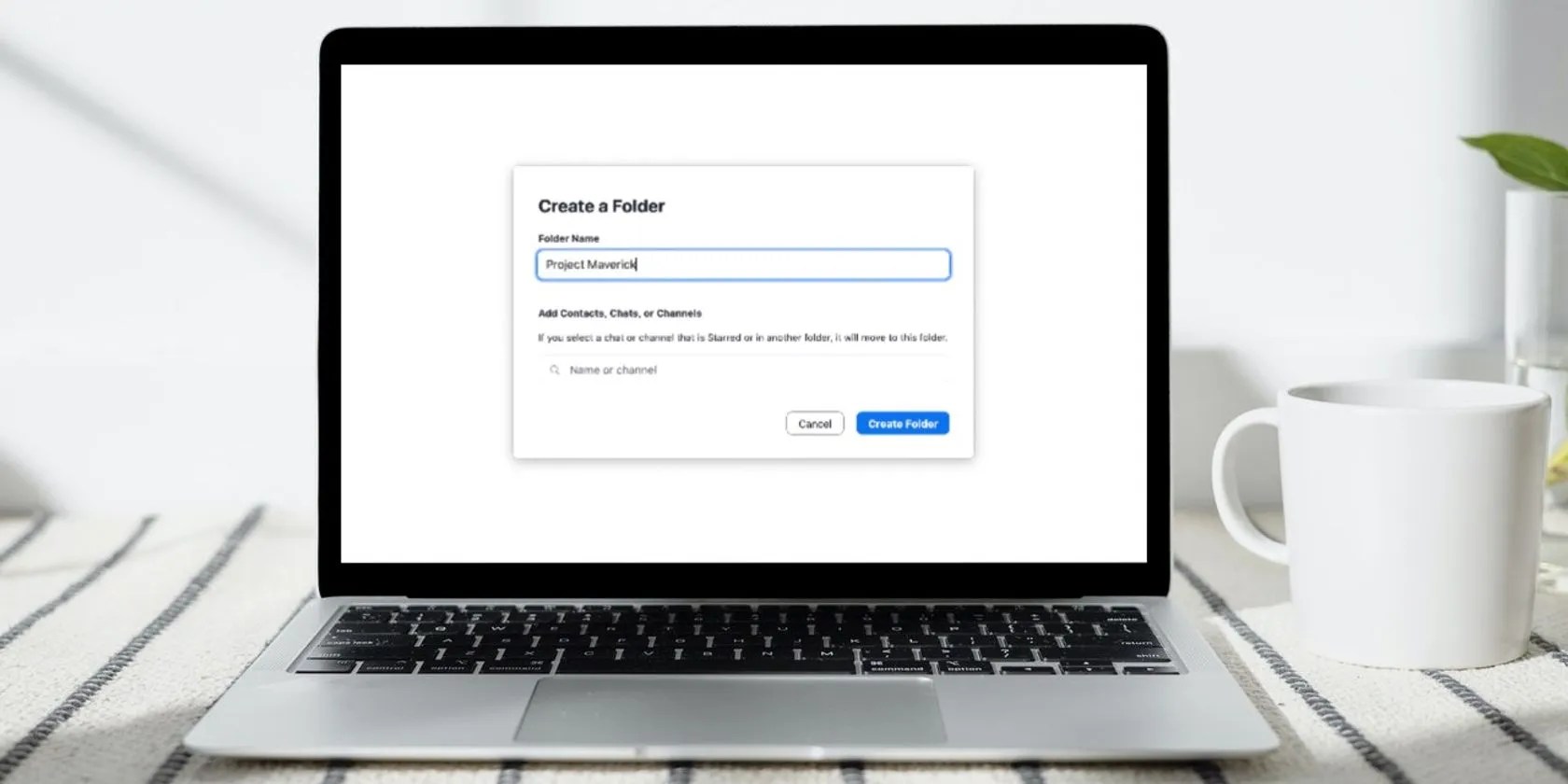
To create a chat folder on your computer, open the Zoom app and click onCreate a Folderunder theChattab by clicking on thearrow buttonon the left of the screen. This will open up a smaller window. In theTextbar, type the name of your folder.
Next, you’ll have toAdd contacts, Chats, or Channelsin your new folder. Type them in theTextbar to start adding them. Repeat this process for every folder you want to create. Just keep in mind that you cannot use the same name for more than one folder.

If you’re creating a folder on mobile, tapMeet &Chat>Folders>+ Icon> addFolder Name>Next> Add contacts and channels >Create.
When you’re done creating your folders, you can organize them by dragging and dropping them and their contents by order of importance. You can also organize folders according to your preference, like arranging them in alphabetical order.
Stay Organized With Zoom Chat Folders
Zoom offers a ton of features that make it easier to be productive and stay in touch. Folders are one such feature. Use them to separate work and personal matters, and to make it easier to navigate your chats.
Trying to host or join a Zoom meeting and the software crashes or freezes? We’ve got the solutions you need.
My iPhone does it all, but I still need my dumb phone.
These are the best free movies I found on Tubi, but there are heaps more for you to search through.
Your phone is a better editor than you give it credit for.
Lose your laptop without this feature, and you’ll wish you had turned it on.
I gripped my chair the entire time—and then kept thinking about it when the screen turned off.
