How to Create an Aesthetic iPhone Theme Using Themify
There are many reasons to love your iPhone, but admittedly, the layout and aesthetic can quickly become dull. Luckily, there are ways to customize your iPhone by using personalized icons, widgets, and other compelling features.
So, if you want to add an interesting flare, keep reading, and we’ll show you how to create an aesthetic theme for your iPhone using Themify.

How to Use Themify to Create an Aesthetic Theme for Your iPhone
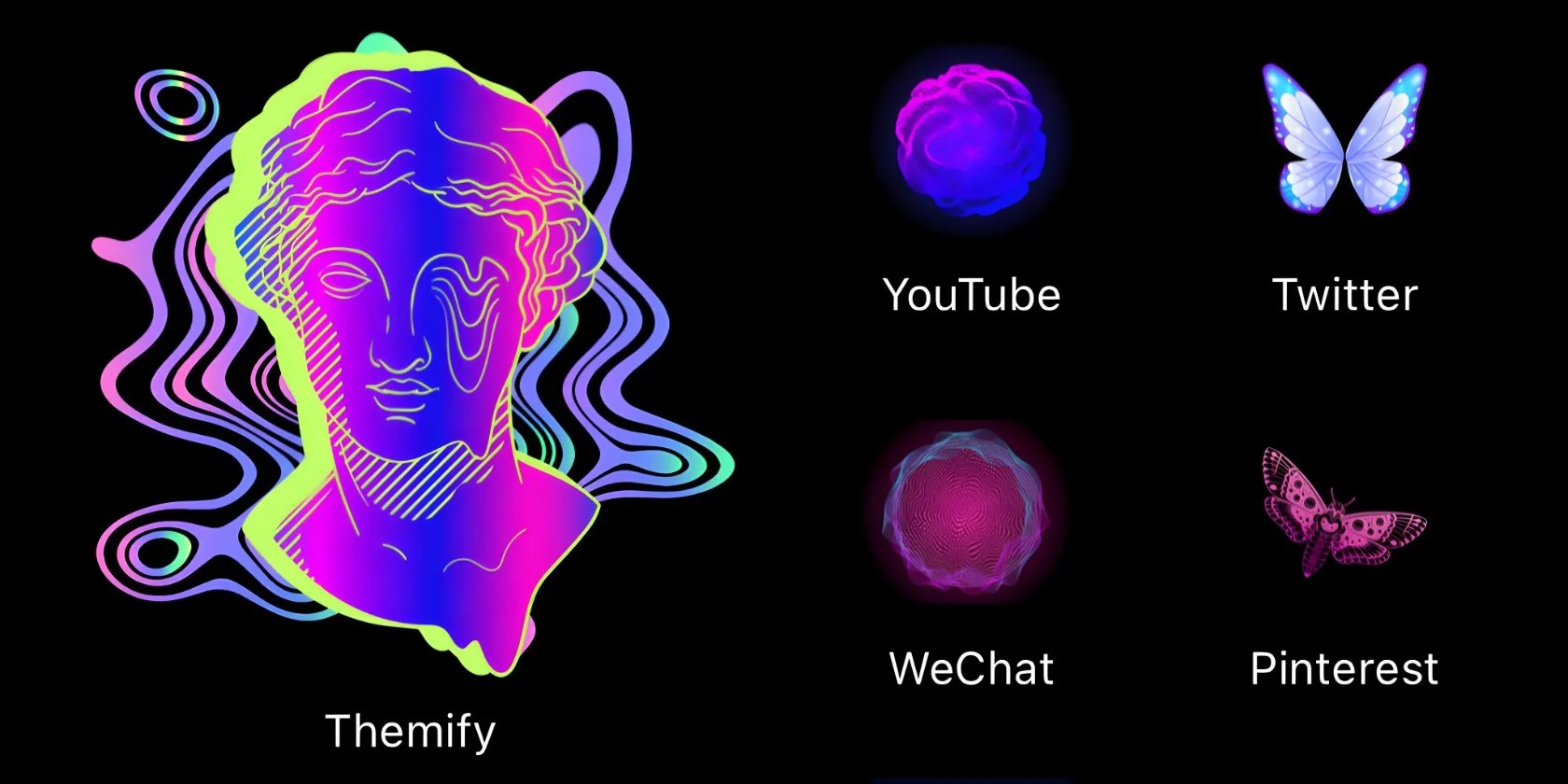
Themify is equipped with plenty of pre-existing themes that you may either use as is or customize to your liking. Scroll throughPopular Themeson theDiscoverpage, or tapCatalogto check out the New and Exclusivethemes; you can also find a specific aesthetic or theme in this section, such asKawaii,Retro,Pride, andHolidays, to name a few.
Download:Themify(Free, subscription available)
Using an Existing Theme
If you find a theme you like and want to apply it to your phone without making any changes, all you have to do is tap on the theme, tapTry, then tap theSavebutton next to Wallpaper and Widgets. Next, go ahead and choose which apps you want icons for, or you canSelect AllandInstall Selected Items.
Customizing an Existing Theme
If there’s a theme you like, but it has an element you want to change, you can do that too. Instead of tappingTry, chooseCustomize. You can then change the wallpaper, icons, or widget to something that better suits your taste.
Creating Your Own Unique Theme From Scratch
The great thing about Themify is that it comprises a wide variety of content and themes. Whether your soul’s aesthetic resonates with dark academia or cyberpunk, you’re bound to find something that piques your interest.
1. Choose an Aesthetic
Choosing an aesthetic may seem easy, but it might be a bit challenging if you have multiple aesthetics you want to include. Don’t worry: you have free rein over every aspect so that you can mix and match your heart’s desire. Perhaps you want to mix kawaii with retro and neon, or you like both grunge and cottagecore—anything goes, as long as you’re happy with it.
2. Find a Home Screen Wallpaper
There are plenty of wallpapers to choose from within the Themify app; look atAbstract & PatternsorUrbanif that’s more your style. If none of the options tickle your fancy, you can also upload your own image. And if you want to be especially unique, why not try an AI-generated wallpaper, or upload one of your own artworks?
If you choose to use the app’s archive, head toStill WallpapersunderCatalogand scroll through the many available options; if you’d prefer using your own image, an AI-generated image, a personal artwork, or something you’ve saved from the internet, tapCreatein theYour Designscategory, select the image, and Themify will turn it into a wallpaper.

If you’re looking for ethical AI-generated art, learnhow to use Shutterstock’s AI image generator to create artwork, which you’re able to then use in Themify.
3. Using Existing Icons and Creating New Ones
it’s possible to either choose existing icons or use Themify’s Icon Maker to create your own. Existing icons can be found inIconsunderCatalog, which are separated into aesthetic categories.
To use existing icons, all you have to do is tap on the icons you like, select which apps you want icons for, and then tapInstall Selected Icons.

You’ll be prompted toAllowthe download. Once the icons have downloaded, head to the Settings app, tapProfile Downloadedat the top, and then tapInstall. Within seconds, you’ll have your new set of aesthetic icons.
On the other hand, if you want to create your own icons, tap on any set of icons and then tapIcon Maker. Themify has a variety of background colors, icons, and framesto choose from. However, these options are limited, but it does allow for some creativity. We chose something simple and floral for our theme.

Once you’ve made the icon, tapAppand select which app the icon is for. When you’re finished creating all the icons you need, you can go ahead and install them.
Not satisfied with the limitations of Themify’s Icon Maker? You cancreate custom app icons for iPhoneby using the Shortcuts app.
4. Add Home Screen Widgets
Unlike the other functions, the categories for Widgetsare not all themed; you’ll find some practical categories, like Launcher, Time, and Calendar. Launcher, for example, is a widget that launches an app, or multiple apps; the Timewidget can display the time in the style of an analog clock or digitally.
It’s great to have a widget that shows the time or date if you live a busy life because the size makes it easier to spot. However, if you don’t need to keep on schedule, you can also include a widget for pure aesthetics. Choose from the options on Themify, or upload your own image to the widget.
To customize a widget, head toThemesinCatalogand tapCreate. From there, chooseWidgetand then select theWidget Type. Next, select aWidget Photofrom your gallery, and change the font color and style to match the aesthetic.
Adding the widget to your Home Screen is easy: after you’ve saved it, long-press on your Home Screen and tap theplus (+)symbol in the top-left corner. Next, scroll down to Themify and choose which widget style you want—small square, rectangle, or big square. Move the widget the same way you would move icons.
5. Personalize Your Lock Screen
Lock screen widgets are exactly as they sound: widgets for your lock screen. These are different from Home Screen widgets and are typically in the form of line art or simple illustrations. You can add countdowns, quotes, app launchers, and aesthetic sketches.
To add a Lock Screen widget, long-press on your lock screen and tapCustomize. Next, tapAdd Widgetsand find Themify. Choose your widget size, then tap theplus (+)icon and select the widgets you want to display.
Want to try out other widgets? Here are some of thebest iPhone Lock Screen widgetsyou can use to customize your iPhone.
You can also browse Themify for images, upload images you found online, or use a photo you took. Your Lock Screen can be the same as your Home Screen, or you can find a different one with a similar vibe. If you decide on the latter, opt for something that goes along with your Home Screen’s color, purpose, or art style.
If you settle on a Lock Screen wallpaper from the Themify app, all you need to do is tap theSavebutton, and the image will be added to your phone gallery. You can then change your Lock Screen like you typically would.
6. Pick an Aesthetic Charging Animation
While there are a variety of categories for the charging animation, you might not find one that matches your aesthetic completely, so you can skip this step if you’d like. However, you’re likely to find something interesting enough to complement your iPhone.
For example, we found that the growing plant was in line with the simple, floral theme of our icons. Pretty cool, isn’t it?
Customize Your iPhone With Themify
In today’s world, our phones are used for much more than making calls. Considering the time we spend on our devices daily, it makes perfect sense that we want to make them beautiful and inspiring.
So, don’t settle for the default options Apple limits you to. Instead, personalize your iPhone and make it your own with a third-party customization app like Themify.
Here’s how to use widgets and custom app icons to make your iPhone’s Home screen stand out.
You’re not getting the most out of what you pay for iCloud+.
Flagship price, mid-range phone.
These films will leave you questioning humanity, but also wanting more.
This small feature makes a massive difference.
The key is not to spook your friends with over-the-top shenanigans.
