How to Configure Zoho Mail When Switching From Gmail
Zoho mail is a secure, privacy-guaranteed, and ad-free email service. It offers a feature rich email suite, making it ideal for personal and business use cases. If you’ve been using Gmail and want to switch to Zoho Mail, you’ll see a range of settings that might get confusing.
You can customize the viewing experience, email composer, organize your emails using filters, take quick actions with the attachment, manage spam lists, and even import or export email as EML. We’ll show you configure Zoho mail and switch from Gmail seamlessly.

Steps to Take Before Configuring Zoho Mail
Before customizing Zoho mail, ensure you’ve properly mapped the custom domain to the MX record and configured SPF/DKIM parameters toprevent email spoofing. Read our guide onmigrating from Gmail to Zoho mail with your custom domainand complete the process.
When you switch to a different email service, your banking, credit card, billing, insurance, and other service providers should know your up-to-date email address for communication purposes.

The migration is a slow process, but in the long run, you’ll be able to consolidate important emails in one place. It’s also a good idea to considersetting up auto-forwarding in Gmail, just to catch any services that you missed.
Composing Emails in Zoho Mail
Zoho mail offers you a comprehensive toolkit for composing emails. Click theNew Mailbutton in the left pane to openComposer. By default, the composer window opens in a new tab (Settings > Compose > Open Compose in) but you can go with inline (it replicates the Gmail feature) or a new window.
Like Gmail, Zoho has rich formatting options to format your email message. There is an option to insert tables (which Gmail lacks) with configurable width and border options. you could even attach emails to outgoing emails (as EML) using drag-and-drop and reference older messages without re-writing them.

To customize the composer preferences, go toSettings > Composeand view the whole set of options. You can change the preferred text direction, customize fonts, automatically add recipients to contacts, and check your message for any spelling mistakes.
Add Large Attachments to Emails in Zoho Mail
Gmail allows attachments with a maximum file size of up to 25MB. With Zoho mail, you’re able to sendlarge files to your recipientsthrough emails. The size of the attachment depends on the subscription plan. It varies from 250 MB with Mail Lite plan to 1 GB with Mail Premium.
Mail converts these attachments into links and send it to the recipient(s). If you want to send the same file to different recipients, select the file fromMy attachment > Huge attachmentsand send it again. For every attachment, you can set access permissions.

Limited access is suitable for sending attachments to other Zoho users or those with linked accounts. With public access, you can send large files to anyone using a secure and unique link. By default, all attachments haveLimited access. Click this option to make itPublicand generate the attachment link.
How to Schedule an Email in Zoho Mail
Zoho mail “Send Later” option lets you set up a custom schedule (date/time) for your email. While this feature is also built into Gmail, Zoho has the ability to set up recurring emails at regular intervals.
Draft your email as usual and clickSend Later. Select theSchedule taband choose a date and time.
To set up a recurring email, repeat the above procedure and click theRecurring tab. Choose the frequency (daily or weekly, end date, and time zone, if any. They come useful when you want to send out reminders to your clients regarding the invoices.
How to Snooze Emails in Zoho Mail
There will be some important emails to which you cannot respond immediately but need to later on. The Snooze feature in Zoho mail stores your email in a separate “Snoozed” folder and return your message back to the original folder after the specified time interval.
Select the email you wish to snooze and click theSnoozeicon in the top menu. Choose the duration or pick a custom date and time. The selected email will move from the original to theSnoozedfolder.
Reading Emails in Zoho Mail
At times, you may want to see an email from a sender you received a few days or weeks ago. Instead of scrolling through the email list, Zoho mail can list emails from a particular sender or subject.
Right-click the email message and chooseList emails from this senderorList emails with this subject. You can even customize the fields of your email list like flag, attachment, comment count, size, and more.
Customize the Layout and View Options in Zoho Mail
By default, the emails are listed in the “Classic” view. To customize this behavior, click theChange Viewicon and select the “Compact or Super Compact” view. In each view, the ample spacing between emails decreases and lists more emails.
When you select any email, it opens in theVertical Previewmode by default. Go toSettings > Mail View Optionsand chooseHorizontal Previewto view your email below the email list. Or, chooseNew Tabto view them in a new tab.
Does Zoho Mail Offer a Conversation View?
On Gmail, when people reply to an email, it groups responses in a conversation view with the newest mail at the bottom.
Zoho mail stack the entire conversation in a tree view with sender details, timeline, folders, attachments, and more without even opening the email. In addition, you can sort the conversation thread (Settings > Conversation) with either the newest or oldest mail on top.
View and Manage Attachments in Zoho Mail
One of the biggest drawbacks of Gmail is the lack of a dashboard to view/manage attachments. While you canfind messages with attachments using Gmail search operators, it takes a bit of practice. Zoho mail offers a centralized dashboard to view attachments (either sent to you or added to other Zoho apps) in a single place.
Click theAttachment Viewericon to see your files neatly sorted based on their file types. Select any thumbnail to view them or take quick actions on the attachments. ClickOpen Linked Emailto open the email linked with your attachment, attach and send a new email or add it to a note or task.
Follow-Up on Important Emails in Zoho Mail
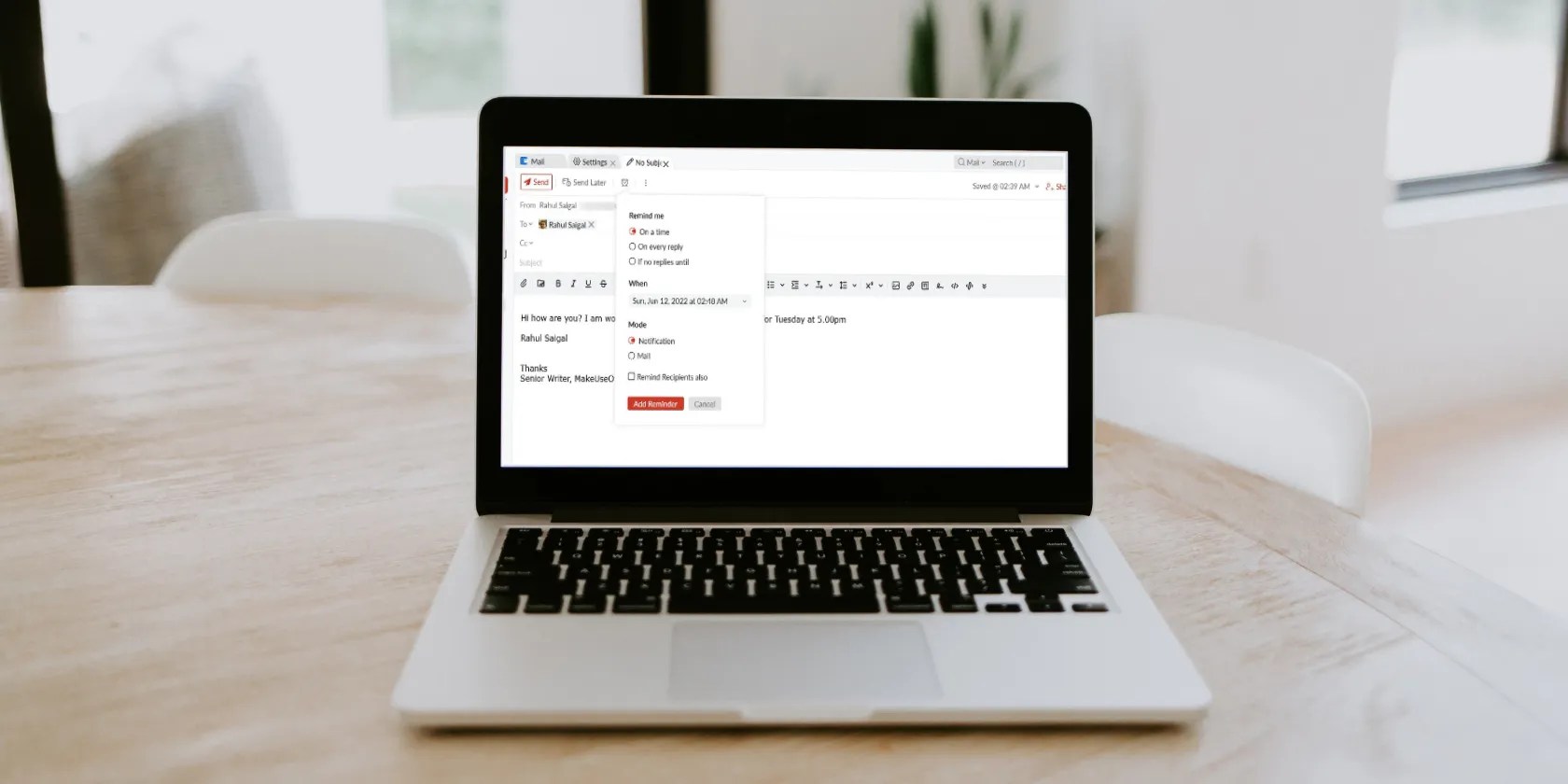
We often need to follow up on the email irrespective of the response. Zoho Mail has the built-in option to add a reminder to your emails. Draft your email and click theClock icon.
You can set a particular time to remind you about the email, whether you receive the reply or not. Or set a deadline date, and if no one replies to the email, you’ll be notified about it once the deadline is over. Zoho mail can remind you about the mail via notifications or email.
In the same way, you could set up a reminder for incoming emails. Select the email you want to add the reminder, then clickMore Options > Reminder. Choose your preferred option and proceed. Head toSettings > Presetto customize the alarm option according to your desired timings.
Organize Emails in Zoho Mail
Filters in Zoho mail help you automatically organize incoming/outgoing emails. Just like Gmail, you can set conditions and take action for those conditions. But in Zoho, you can use AND/OR operator to define whether any or all conditions should be considered.
To get started, head toSettings > Filtersand create a new filter. Now set the condition type (combination of conditions in AND/OR), conditions (From, Subject, To, Cc, Bcc, Attachment type), and actions (Move to folder, Tag as, Forward email to, Delete email).
On Gmail, we use “Labels” to organize messages. In Zoho, you’re able to create multiple folders at different levels to organize or manage emails. Click the (+) sign next toFoldersto create a folder and select its location. In addition, you can create tags (Select an email > Tag as) to further organize them according to the project, particular team, clients, and more.
Zoho Mail’s Integration with Third-Party Services
Zoho mail has excellent integration with external and internal apps to supplement your workflow. The internal ones are the Zoho apps (Zoho Invoice, Zoho Workdrive, Zoho CRM), and the external ones integrate with the mail through the API provided by third-party apps. To see which integrations are available, go toSettings > Integrations.
ClickGo to Marketplaceand choose your favorite apps. Some popular ones are Asana, Trello, Google Drive, Dropbox, OneDrive, Clearbit, Google Calendar, GoToMeeting, and Integrately. Go to the extension page and activate it. Then, go back to the Integrations section and toggle theEnablebutton.
Now That Zoho Mail Is Configured, Try to Overcome Your Email Addiction
Zoho Mail is a great alternative to Gmail. The Mail Settings page is clumsy/difficult to navigate, and it takes time to get used to it, but if you have followed the procedure, you’re able to start using Zoho mail in a matter of moments.
One common trend seen nowadays in people is checking email every few minutes. Although this obsessive inbox-checking habit seems innocuous, it can negatively affect your well-being and productivity. To know more, read our guide to find ways to overcome email addiction.
If you have a compulsive urge to check your email every few minutes, it might be time for email detox. Here’s how to break your email addiction.
Taming data is easier than it looks.
Some subscriptions are worth the recurring cost, but not these ones.
Freeing up vital memory on Windows only takes a moment, and your computer will feel much faster once you’re done.
Lose your laptop without this feature, and you’ll wish you had turned it on.
You can’t call this offline, Notion.
