How to Add a Matter Smart Home Device to Google Home
Image Credit:Google
Matter is here, and that means Google Home users can also easily pair compatible devices with their smart home setup.

Don’t worry—pairing your Matter devices only takes a few taps. We’ll show you how.
Matter and Google Home: What You’ll Need
You must ensure that your device supports the Matter standard before you’re able to add it to Google Home andcontrol it using Google Assistant. The quickest way to check for compatibility is by looking for a pairing code on-device or the within the included packaging.
Some devices—like the Eve Aqua—are slated to receive an update to enable Matter functionality after their initial release. In this case, you’ll need to refer to the vendor’s app or an on-device display for the pairing code.
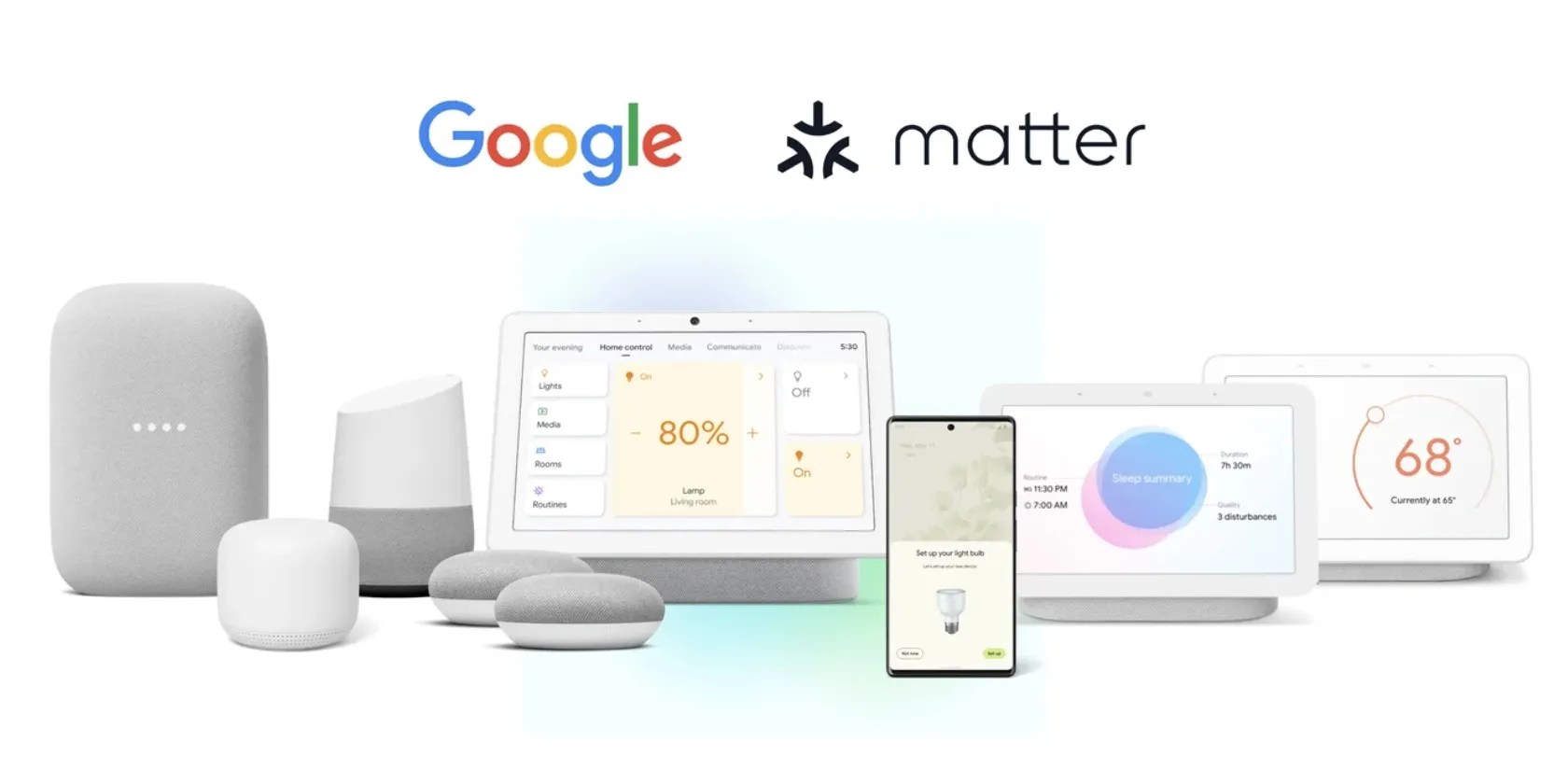
Adding a device also requires you toset up a Google Nest Minior other Google Matter Controller in your home. Fortunately, Google made good on its promises to add Matter to all its existing smart speakers, so you likely already have one.
Here’s the complete list of compatible Matter Controllers according to Google:

While most Google hubs act as Matter Controllers, they must also support Thread Border Router functionality if you wish to add a Thread-enabled device. Currently, only the Nest Wifi Pro, second-gen Nest Hub, and Nest Hub Max work with Thread.
As with most things, you’ll also need to ensure that all your devices are up-to-date with the latest software. Finally, you’ll need to be close to your device and have Bluetooth and Wi-Fi enabled on your phone or tablet.

How to Add A Matter Device to Google Home
Screenshot/Photo by Christopher Close – No attribution required
In most cases, the Google Home app on Android will detect your new Matter device automatically when powered on, allowing you to skip right to scanning its pairing code. If it doesn’t find your device, or if you are using the Google Home app oniOS, you can still pair it manually.

To begin the setup process, power on your device and launch the Google Home app. Start by tappingDevices, then tap the+Add buttonon the lower right.
Now, tapNew Device,then tap the Home you wish to assign it to. Continue by tappingNext,thentapMatter-enabled device.
Next, scan the Matter pairing code with your camera or tapContinue without scanningand type in the device’s code. Review Google Home’s permissions, then tapI agreeif you wish to continue.
The final steps will vary depending on whether you use Android or iOS.
If you use Android, assign your device to a Room in your home, then tapNext. Finally, tapDoneto complete the setup process.
If using an iPhone or iPad for set up, tapAdd to Google Home.Give your device a name, then tapContinue,followed byDone.Assign your device to a room within Google Home, then tapDoneonce more to finish.
How to Remove a Matter Device From Google Home
As with adding a Matter device, you can use the Google Home app to remove devices as needed. Launch the Google Home app, then tapDevices.
Tap the accessory you wish to remove, then tap theSettingsicon near the top right corner of your screen. Now, tapRemove device.
If your Matter device only connects to Google Home, tapRemoveonce more to save your changes. If your device connects to additional services like Alexa or Apple Home, tapUnlink allto remove it.
Upgrade Your Google Home to Matter
As you can see, Matter streamlines the pairing process for Google Home, making setting up your new device a breeze. With just a few taps, you are ready to slot your device into your Routines, and use voice controls via Google Assistant.
We’ll highlight a great way to take your Google-powered smart home to a new level with Routines.
Taming data is easier than it looks.
Lose your laptop without this feature, and you’ll wish you had turned it on.
Goodbye sending links via other apps.
The fix was buried in one tiny toggle.
Every squeak is your PC’s way of crying for help.
