Here’s how Google can find the song that’s stuck in your head
Few things in life are as irritating as a song playing on an endless loop in your head, while its name escapes you. Fortunately, Google can help you identify that elusive song title. So next time you are at a party and want to add the groovy music blasting in the background to your playlist, or you want to take over as deejay, you can use the steps below to identify the song.
Yes, Google can name that tune in a jiffy
A song stuck in your head can be so distracting that it has earned the name “earworm.” And the best way to get rid of it is by playing it on repeat to get it out of your system. But, to do that, you need to find the song’s name, and that’s where Google can be your all-knowing friend. Here are the ways it’s possible to use Google to find out the name of that song.
Use the Now Playing feature on Google Pixel devices
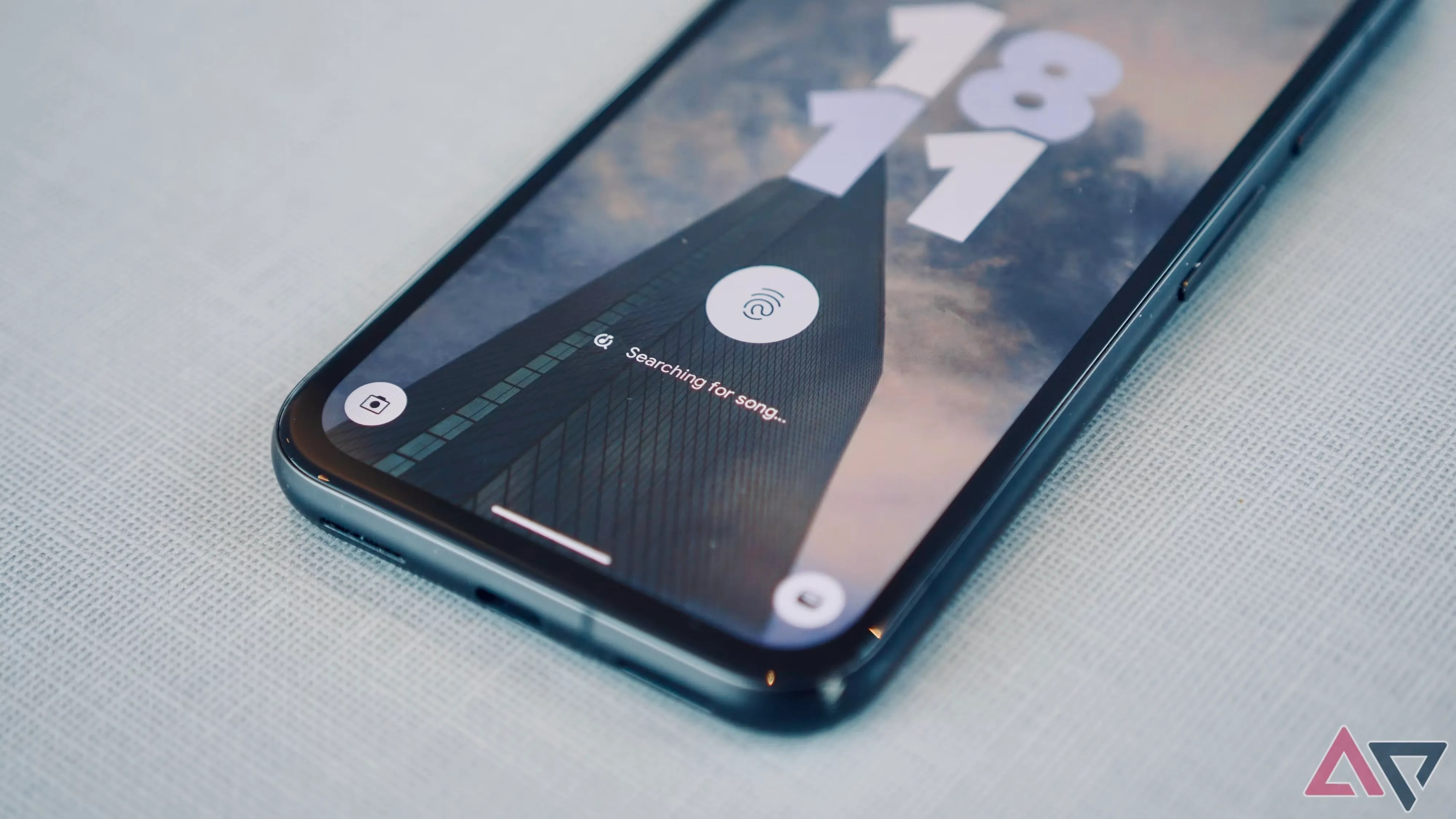
With the Google Pixel 2 and Pixel 2 XL, Google released a Now Playing feature that identifies songs playing in the background by matching them against an offline song database downloaded on your phone. The feature received several updates over the years. It can identify almost any song playing in the background and silently display it on the lock screen of your Pixel phone.
you’re able to activate it if it’s not on by default on your Pixel phone.

Now, when a song plays around you, you see its name displayed on the lock screen of your Pixel device. Simply tap the song name to find out more details. When you expand the details, Google automatically adds the song to its Now Playing History list so that you don’t forget it. Here’s how the feature looks on aGoogle Pixel 7 Pro.
Hum, whistle, or sing a melody of the song
The best thing about finding a song on Google is that the song doesn’t need to be playing in the background. You can hum, whistle, or sing a part of the melody to identify it. When you hum or whistle a song, Google gives multiple answers with a probable percentage match. Google has become so good at identifying songs this way that we can’t remember the last time we couldn’t find the song we were looking for.
When you have an earworm stuck in your head that you can’t get out, use the Google Assistant or Google app song-finding feature and hum the melody you remember. Nine times out of ten, Google finds the correct song.

Use Google Assistant to find a song
While Google Assistant can identify a song, Gemini does not appear to have the same capability just yet. If you’ve made the Jump to Gemini, you can use Shazam as an alternative.
One of the manyuses of Google Assistantis that you can use it to identify songs. If you don’t own a Pixel phone, using Google Assistant is the easiest way to find a song playing around you.
Just say, “Hey Google, What’s this song,” and it finds the song for you. you’re able to also hum, whistle, or sing the melody of a song to find it.
Use the Google app or widget to find a song
You can also use the Google app or widget on your phone to find a song. The app comes preinstalled on your Android device, so you don’t have to install an extra app to identify songs. To find a song using Google, tap themicrophoneicon and click theSearch a songbutton to identify songs playing near you. You can also hum or whistle a tune to find the song.
Striking out on Google? Try Shazam or SoundHound
Google isn’t the only game in town when it comes to song discovery. Shazam and SoundHound are excellent alternatives with Android and iOS apps.
SoundHound allows you to start a search by saying “Hey SoundHound,” see real-time lyrics, and helps you find similar artists. Shazam offers the same features and is well integrated into iOS. you could use the Shazam shortcut for iOS to find the name of a song and play it immediately on Apple Music.

Find out a song on Google to get rid of your earworm
Using these methods, you can identify the song stuck in your head. Now it’s time to use one of thesebest Android music playersto play the song on repeat to get it out of your head.
We want to hear from you! Share your opinions in the thread below and remember to keep it respectful.

Your comment has not been saved
This thread is open for discussion.
Be the first to post your thoughts.
The note-taking app I should have used all along
Broader branding hints at wider paid-tier ambitions
It helped me wind down before bed
It’s never been cheaper
What’s new? A lot
No more excuses
