9 Best Hidden iOS 16 Features You Should Know
The iOS 16 update came with several new features, leaving Apple users in awe. Released on September 12, 2022, this update transformed the overall look of iOS devices.
Users with iPhone 8 and above models have received this update on their phones. But is there more to this update, or did Apple just focus on the look? Find out all about the hidden iOS 16 features that can elevate your experience to a new level.

1. Battery Percentage in the Status Bar
With the release of the iPhone X, Apple removed the battery icon. Users had to swipe the right side down to check the status. Besides that being inconvenient, it also caused strain on the hands.
Since it was one of the most requested features for iOS, Apple decided to reintroduce it with a different look.
To activate the battery percentage in your status bar, go toSettings>Batteryand toggle theBattery Percentagetab.
You can see the battery percentage displayed inside their battery icon. The battery icon is white when the device has enough charging, green when it’s charging, and red when it has 20% battery or less. When youriPhone is in Low Power Mode, it turns yellow.

2. Undo Send Delay Option for Your Mails
You know the risks associated with sending incorrect emails. Not a risk-taker? Victims of sending unprofessional emails see the importance of the Undo Send Delay feature in the iOS 16 update. This feature gives you a specific time frame to undo the sent email.
To activate Undo Send Delay on your iOS device, openSettings>Mail, go to the bottom, tapUndo Send Delay, and set the time frame.

You can keep the feature off or turn it on and set the time for 10, 20, or 30 seconds. However, ifyou experience inconsistent internet speed, we recommend opting for a larger time frame.
3. Depth Effect on Your Lock Screen
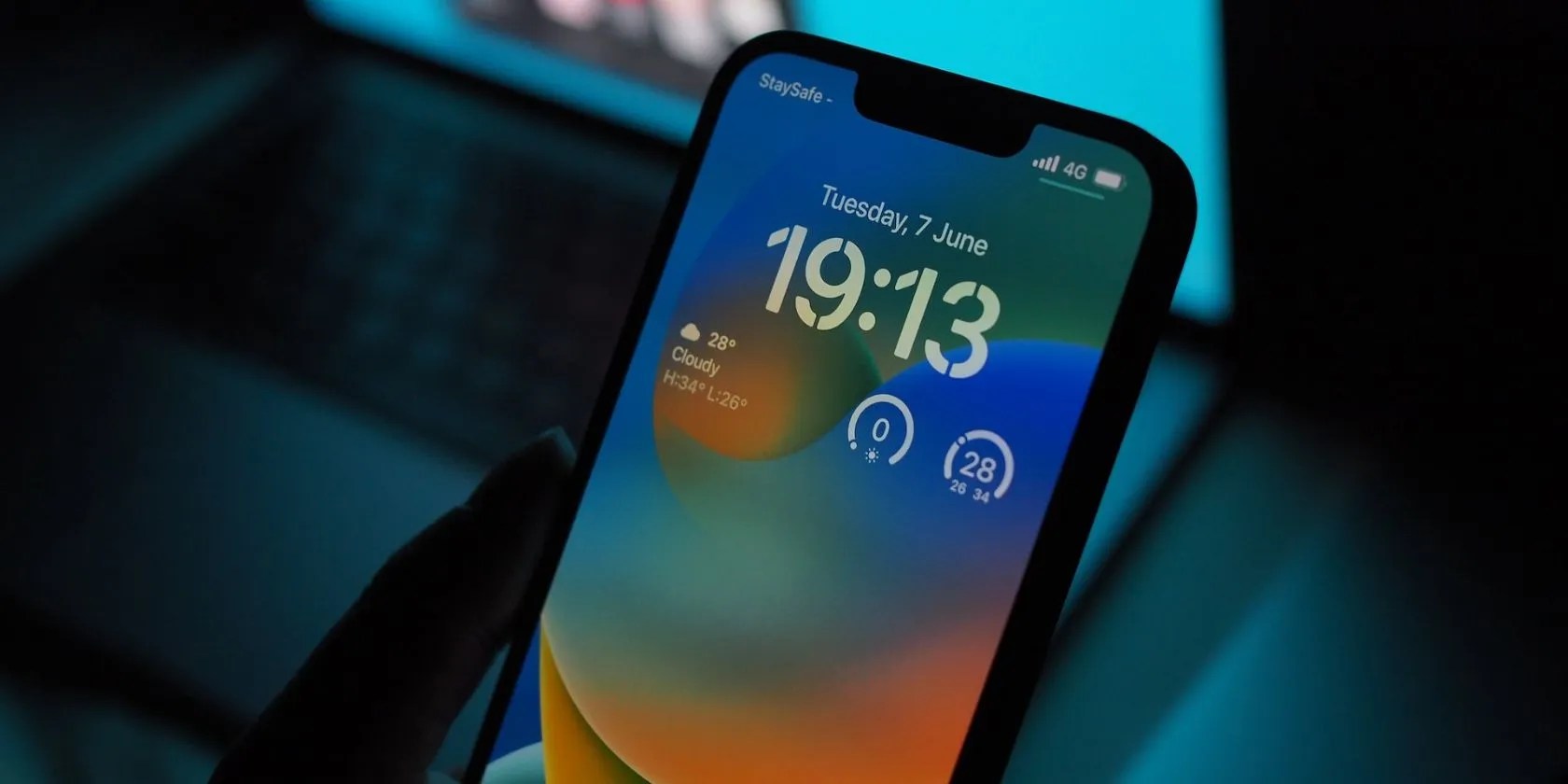
This feature mainly focuses on the visual impact. If your lock screen wallpaper is an identifiable object—like a face, an animal, or a building, the iPhone will put it in front of the time clock. We can call it a 3D approach to make your lock screen wallpaper pop out.
To apply the depth effect on your lock screen, follow the instructions below:

The depth effect does not work on all images. The photo you select should have a prominent subject in the foreground for it to work. Also, if you use widgets on your lock screen, the depth effect won’t work.
However, you can try to zoom in and move around the subject to the point that it hides the clock slightly to double-check if your image is compatible.
4. Copy Screenshots to Clipboard Without Saving
Most of the time, screenshots become worthless after a while, but they take up a huge chunk of your iPhone storage. With iOS 16, there’s no need to save them on your device if you only need to use them once.
This way, you can share screenshots without them piling up on your iPhone.
5. Copy and Extract Objects from Images
Next on the list, we have a handy feature that could end your reliance onphoto editing apps. This feature lets the users focus on and isolate a person or an animal in the picture. you’re able to use the extract by pasting it where needed.
Open a picture from thePhotosapp. Tap and hold that object until a highlight appears as an outline. The highlight means you have copied that object to extract. You can then paste the copied object wherever you want.
This feature can be a fun way to send emoticons and stickers. you could also change your photo background by isolating and editing them.
6. Disable Lock to End Calls
Many people tend to talk on their iPhones and randomly press the lock button, which disconnects the phone call immediately. Users have been annoyed by this for a long time, and Apple has finally listened to their prayers.
With iOS 16, you can disable the Lock button to end calls. Here’s how to do it.
Now that you’ve made the necessary changes, you don’t have to worry about your calls getting disconnected due to a misclick.
7. Install Security Updates Without Updating iOS
Typically, you would expect iPhone security fixes with every update. But with iOS 16, users can install security updates without going through the process of updating the device to a newer version.
Apart from enhancing security, it adds convenience for people who don’t want to update their iPhones every week. The company’s understanding of potential security breaches is commendable.
To enable this, go toSettings>General>Software Update>Automatic Updatesand toggle theSecurity Responses & System Filestab to enable them. Of course, you can disable the toggles for iOS updates if you just want to receive security updates.
8. Lock Notes With Your iPhone’s Passcode
The iPhone Notes appis a valuable addition that can become a daily part of your life. From making a checklist to jotting down thoughts, there is a lot one can do with Notes. For some people, their notes are pretty private.
With iOS 16, you can put a lock on your notes with your iPhone’s passcode. Here’s what you need to do:
You can use your iPhone’s passcode or opt for a new one.
9. Different Layouts for Notifications
iOS 16 has laid a lot of emphasis on the overall look of the Lock Screen. You can now change the way notifications appear on your iPhone.
Simply go toSettings, and navigate toNotifications. Count, Stack, and List are the three options you could choose from.
Enjoy the Hidden Features of iOS 16
Just when iPhone users started to think Apple’s creativity with its software came to a halt, we got iOS 16. It features additional security and layout changes bound to attract any Apple user.
From battery display to general layout and security updates, iOS 16 has made many things easier for its consumers. We hope these hidden iOS 16 features prove to be valuable for your experience.
What’s so special about iOS that people keep coming back to it? Let’s find out.
Your phone is a better editor than you give it credit for.
I found my TV was always listening—so I shut it down.
OneDrive is one of the best, but it has a catch.
You can’t call this offline, Notion.
Who asked for these upgrades?
