12 Quick Ways to Fix Bluetooth Problems on Android Devices
If you’re experiencing Bluetooth connectivity or pairing problems on your Android phone, don’t worry—you’re not alone. Many people have been struggling to get Bluetooth working properly on their Android phones. In this guide, we’ll show you how to troubleshoot and diagnose Bluetooth issues yourself.
What Are Some Common Bluetooth Connectivity Issues?
There are a few types of Bluetooth problems that Android users commonly experience. We’ve outlined some of the most common issues below:
If you’re experiencing any of the issues listed above, read on for the troubleshooting tips you need to follow to fix them.

1. Try to Connect With a Different Device
If your phone isn’t connecting to a Bluetooth device, the first thing you should try is to connect it to a different device. This will help you rule out whether the problem is with your phone or with the other device you’re trying to connect to.
If the problem is with the other device, you should apply the fixes below on that device instead.

2. Turn Off Bluetooth and Then Turn It On Again
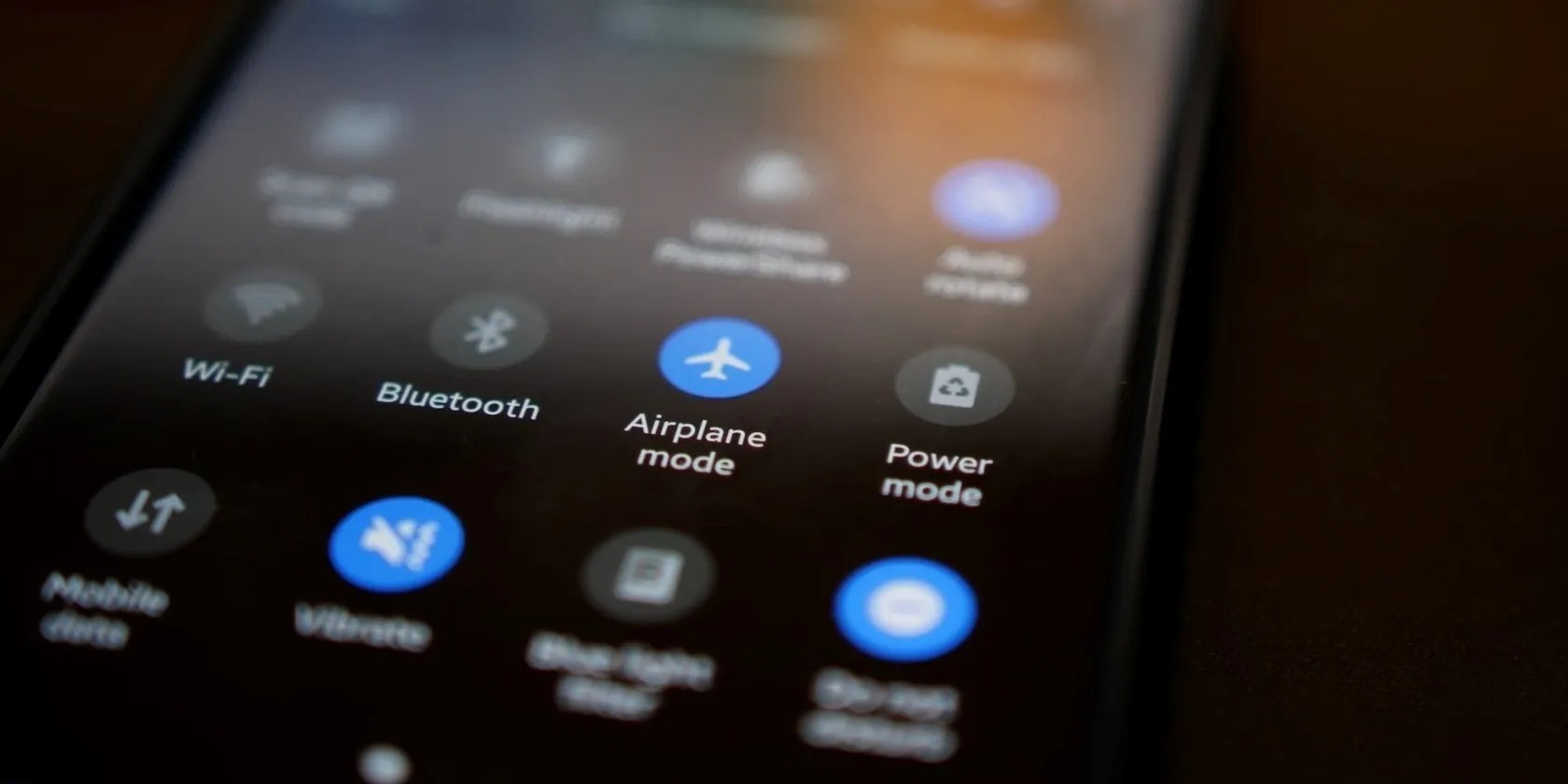
One of the simplest tips you can try is to turn Bluetooth off and then turn it back on again. To do this, open the notification panel by swiping down from the top of your screen. Then, look for the Bluetooth icon and tap it to turn Bluetooth off. Wait a minute and then tap the icon again to turn Bluetooth back on.
3. Unpair the Devices and Try to Pair Them Again
If you’re having trouble connecting your Android phone to other devices, try unpairing them and then pairing them again. To unpair, go to the Bluetooth settings on your phone and find the device you want to unpair. Tap on it and selectForget. Once it is unpaired, wait for a minute and try topair your device to your Android phone using Bluetoothagain.
4. Check the Distance Between the Devices
Another quick fix is to make sure that the devices you’re trying to connect are close enough together. The maximum range for Bluetooth connections is about 30 feet. If the devices are out of this range from each other, they probably won’t connect. Also, obstacles such as walls can interfere with the Bluetooth signal and cause problems.
If you’re experiencing choppy audio playback over Bluetooth, it could be because of interference from other devices. Try moving your Bluetooth device away from other electronic devices to see if that improves the connection quality.
5. Make Sure the Other Device Is Discoverable
If you’re trying to connect your Android phone to another phone or a computer, you’ll need to make sure that the other device is discoverable. Otherwise, your phone won’t be able to find it. To make a device discoverable, go to the Bluetooth settings on that device and turn on any options toMake discoverableorMake visible.
You should also check your phone for this setting. If your phone has Android version 11 or 12, you may not find this setting in your phone as Bluetooth is discoverable by default.

6. Restart Your Phone
If you’re still having trouble, try restarting your phone. This will close all apps and background processes and your phone will restart. In most cases, this solution will work if the issue is with your phone’s Bluetooth connection.
7. Clear the Bluetooth Cache and Storage
One potential fix for Bluetooth problems is to clear the Bluetooth cache. This will remove all the Bluetooth temporary data that has been stored on your phone’s storage. To clear the Bluetooth cache, open theSettingsapp and go toApp management > App list. If you can’t find the Bluetooth app, tap on thethree dotsin the top-right corner of the screen and selectShow system. It will show all the system apps including the Bluetooth app.
Scroll down and find theBluetoothapp. Tap on it and then selectStorage and cache. In Storage and cache menu, you will find the options to clear the Bluetooth cache and storage.

8. Reset the Bluetooth Settings
Another solution is to reset your phone’s Bluetooth settings. This will erase all of your custom Bluetooth settings and restore them to defaults.
To reset the Bluetooth settings, go toSettings > System. Then, tap on theReset phoneorReset options. The available options may depend on the phone brand you are using. TapReset Wi-Fi settingsand select the SIM card for which you want to reset the settings. Finally, selectReset Settings. This will reset your Wi-Fi and Bluetooth settings.
Once the reset is complete, try to connect your devices again and see if the problem is fixed.
9. Check if a System Update Is Pending
If there’s a system update pending, it might be causing Bluetooth problems on your phone. To check for system updates, go toSettings > System. Here, tap onSystem update. Then, tapOnline update. If an update is available, follow the on-screen installation instructions. If there is no update there, you will see the message, “Your system is up to date.”
10. Scan for Viruses and Malware
Your phone may have been infected with a virus or malware. Viruses and malware can interfere with your phone’s operating system and cause all sorts of problems.
To check for malware, it’s possible to use an antivirus or a malware scanner app. Most Android phones come with a built-in antivirus app that works best. If you want to use a third-party app,Malwarebytes Mobile Securityis a good option. Once you’ve scanned your phone andremoved any Android viruses or malware, try to connect your devices again and see if the problem is fixed.
11. Check for Troublesome Apps
Sometimes a third-party app with bugs may interfere with your phone’s Bluetooth connection and cause problems. To sort out the troublesome app, you may have to go through the time-consuming process explained below.
If the problematic app is important to you and you can’t remove it, contact the app developer about the bug. You can also download an alternate app until the developer resolves the issue.
12. Last Resort: Reset Your Phone
If you’ve tried all of the above solutions and nothing has worked, your last resort is to reset your phone to factory settings. This will delete all the data and settings on your phone. Somake a backup of your important databefore the factory reset.
To reset your Android phone, Go toSettings > System > Reset phone. Now tap onErase all data. On the next screen, the system will again ask you to confirm the reset. TapErase all datato do so.
Once the reset process is complete, your phone will restart and all the data will be wiped. This should fix any Bluetooth problems you were having.
If the Bluetooth issue still exists, it’s time to go to a reliable phone technician as there may be a problem with your Bluetooth hardware.
Fix Your Android Bluetooth Problems
Bluetooth is a great way to keep your devices connected, but when it doesn’t work properly, it can be incredibly frustrating. Luckily, in most cases, you’re able to fix the Bluetooth problems on your phone with a few simple solutions.
If there is no hardware problem, one of the above solutions will definitely fix the Bluetooth issue on your Android phone. If none of those tips work, then you need to get a hardware repair instead.
Bluetooth isn’t only for connecting accessories to your phone. Here are some other cool uses for Bluetooth on Android.
The best features aren’t the ones being advertised.
Your iPhone forgets what you copy, but this shortcut makes it remember everything.
you could’t call this offline, Notion.
Windows is great, but adding this makes it unstoppable.
Don’t let aging hardware force you into buying expensive upgrades.
